Store to Store
Learn how store to store transfer orders are processed in HotWax Commerce.
Stores looking to transfer surplus inventory to another store in need of it work alongside the inventory planning team to create a store-to-store transfer order in NetSuite. This facilitates the transfer of inventory from one store location to another.
Now, let’s look at how store to store transfer orders are processed:
Inventory planners create transfer orders in NetSuite, specifying the source location as the designated store and the destination location as also a store. These transfer orders are automatically assigned a Pending Fulfillment status.
These transfer orders are synchronized to HotWax Commerce so that they can be fulfilled from stores. Once transfer order items are shipped from stores, their status is updated from Approved to Completed and subsequently inventory count for the shipped items is reduced in HotWax Commerce.
The transfer order items shipped from the store are synchronized to NetSuite and the corresponding item fulfillment records are generated and marked Shipped in NetSuite. This step also ensures that inventory counts for the corresponding items are automatically reduced in NetSuite and the transfer order status is updated from Pending Fulfillment to Pending Receipt.
These item fulfillment records are synchronized to HotWax Commerce and inbound shipments are automatically created so that the store can receive the transferred inventory. When the store associates verifies the inbound shipments and receives them, inventory counts for the corresponding items are automatically increased in HotWax Commerce.
Upon successful receipt of inventory, HotWax Commerce synchronizes item receipts with NetSuite. This ensures that the inventory count at store is accurately increased in NetSuite and the status of transfer orders status is updated from Pending Receipt to Received.
Workflow


Create Transfer Orders in NetSuite
Export Created Transfer Orders from NetSuite:
Inventory planners create transfer orders in NetSuite, specifying the source location as the designated store and the destination location as also a store. These transfer orders are automatically assigned a
Pending Fulfillmentstatus.At regular intervals, a Map Reduce script runs a specific Saved Search in NetSuite and identifies transfer orders with a
Pending Fulfillmentstatus that have a source location set as theStore. This script compiles the relevant data into a CSV file, which is then securely placed at an SFTP location.
SuiteScript
Export Transfer Orders to SFTP
SFTP Location
Import Transfer Orders into HotWax Commerce:
Once the store to store transfer orders are created and exported from NetSuite, they are imported into HotWax Commerce.
The process of approving transfer orders in HotWax Commerce, fulfilling them from the designated store location, reducing inventory counts in HotWax Commerce for fulfilled transfer order items, exporting store fulfilled transfer order items from HotWax Commerce and finally importing them into NetSuite mirrors the store to warehouse transfer order flow discussed earlier.
Job in HotWax Commerce
Import Transfer Orders from SFTP
Approve Transfer Orders
Export Fulfilled Transfer Order Items to SFTP
SFTP Location
SuiteScript
Import Fuflilled Transfer Order Items from SFTP
Generate Item Fulfillment Records in NetSuite:
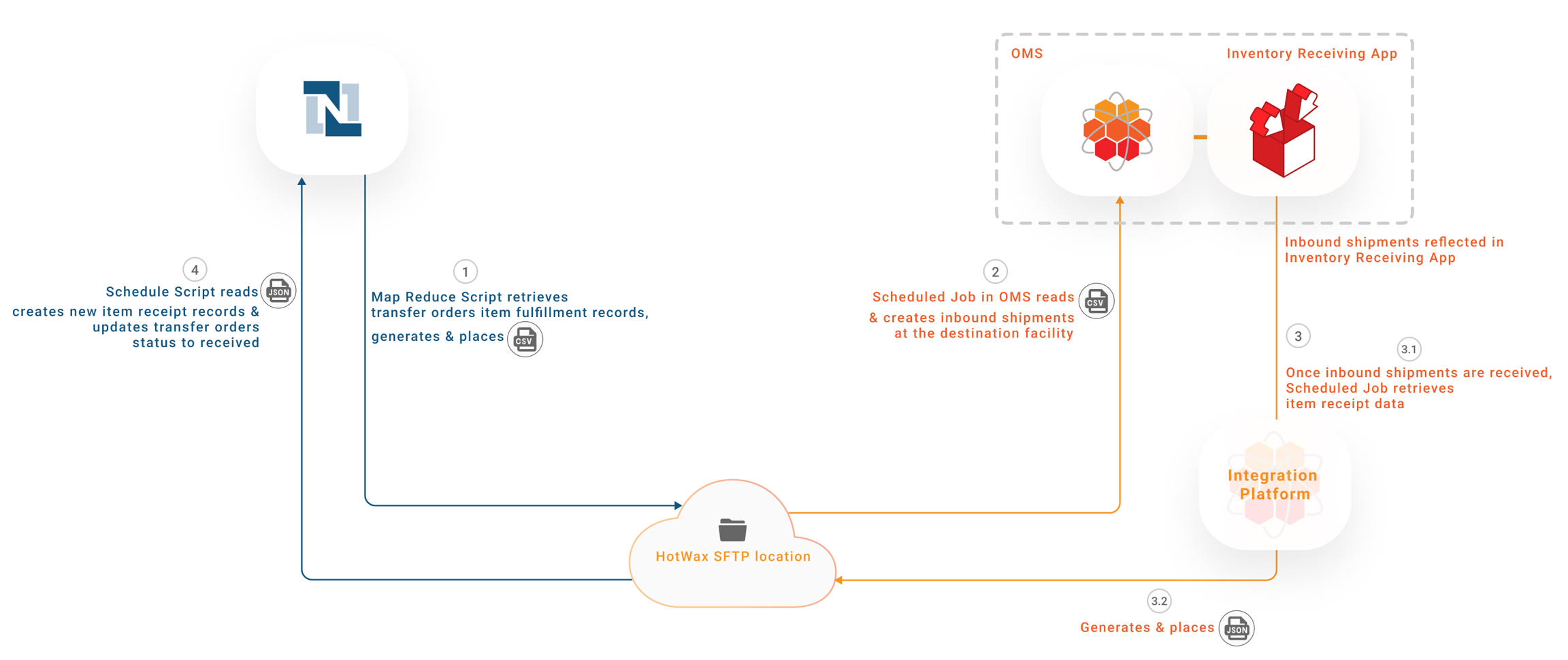
Once fulfilled transfer orders are imported into NetSuite, item fulfillment records are generated and are automatically marked “Shipped”. Whenever an item fulfillment record is marked “Shipped”, the inventory count for corresponding items is reduced in NetSuite. These records signify that the destination store location can now start receiving the transfer order items.
A Map Reduce script runs a specific Saved Search to identify item fulfillment records in
Shippedstatus, where both the source and destination locations areStorelocations. Subsequently, the script compiles the relevant data into a CSV file, which is securely placed at an SFTP location.
SuiteScript
Export Item Fulfillment Records to SFTP
SFTP Location
Receive Transfer Orders in HotWax Commerce:
The process of importing item fulfillment records in HotWax Commerce, receiving inbound shipments in the store, increasing inventory counts in HotWax Commerce against inbound shipments, exporting item receipts from HotWax Commerce, importing item receipts into NetSuite and finally increasing inventory count at store in NetSuite mirrors the warehouse to store transfer order flow discussed earlier.
Job in HotWax Commerce
Import Item Fulfillment Records from SFTP
Export Item Receipts to SFTP
SFTP Location
SuiteScript
Import Item Receipts from SFTP
Following this approach, store associates at the destination store can efficiently receive inbound shipments at their store, synchronize the item receipts with NetSuite, and ultimately mark the completion of store to store transfer orders, with the transfer order status updating in NetSuite from Pending Receipt to Received.
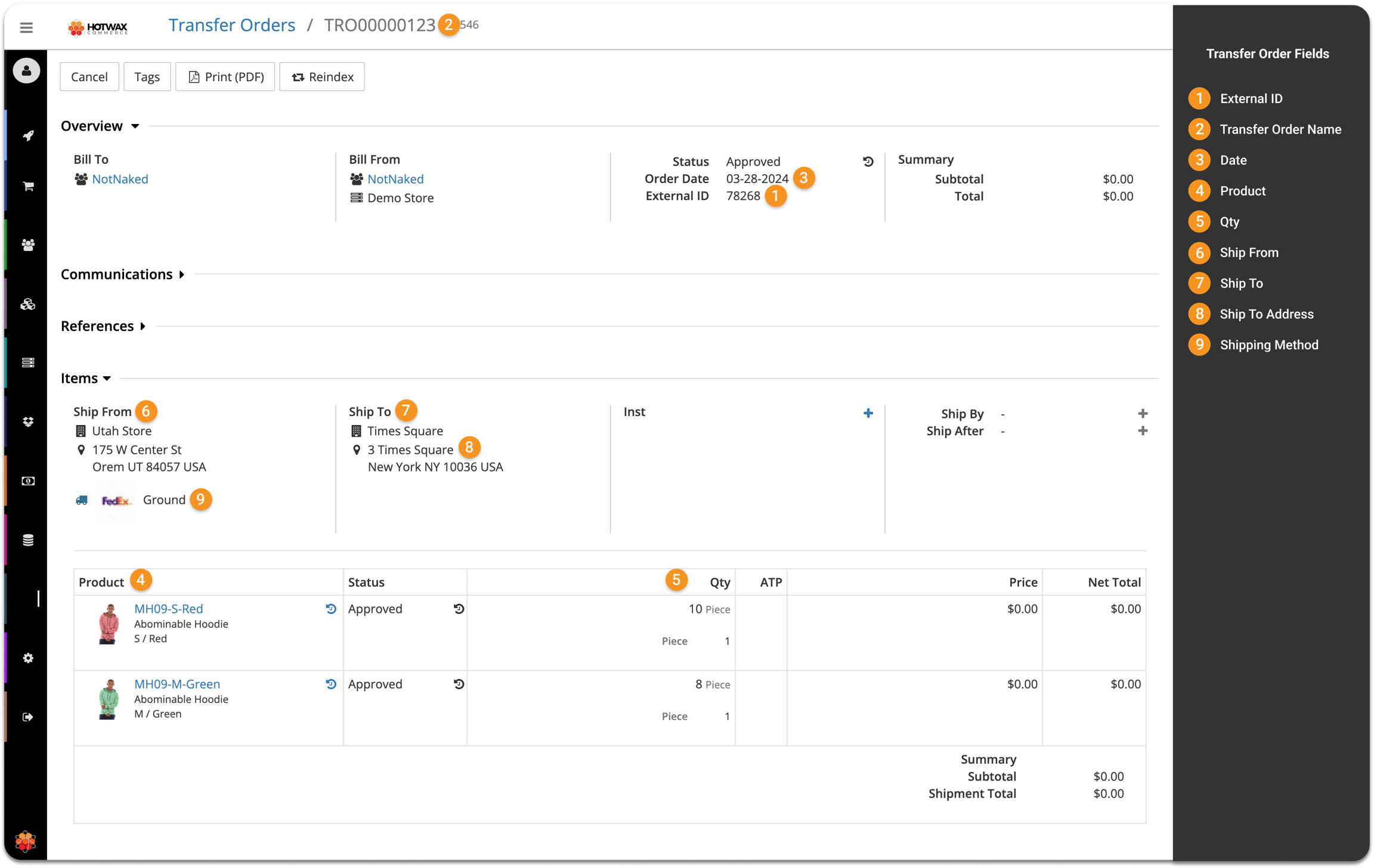
Here's how transfer order fields are mapped in NetSuite and HotWax Commerce for store fulfillment:
1
Internal ID
External ID
2
Transfer Order Name
Transfer Order Name
3
Date
Date
4
Item
Product
5
Quantity
Qty
6
Source Location
Ship From
7
Destination Location
Ship To
8
Shipping Address
Ship To Address
9
Shipping Method
Shipping Method


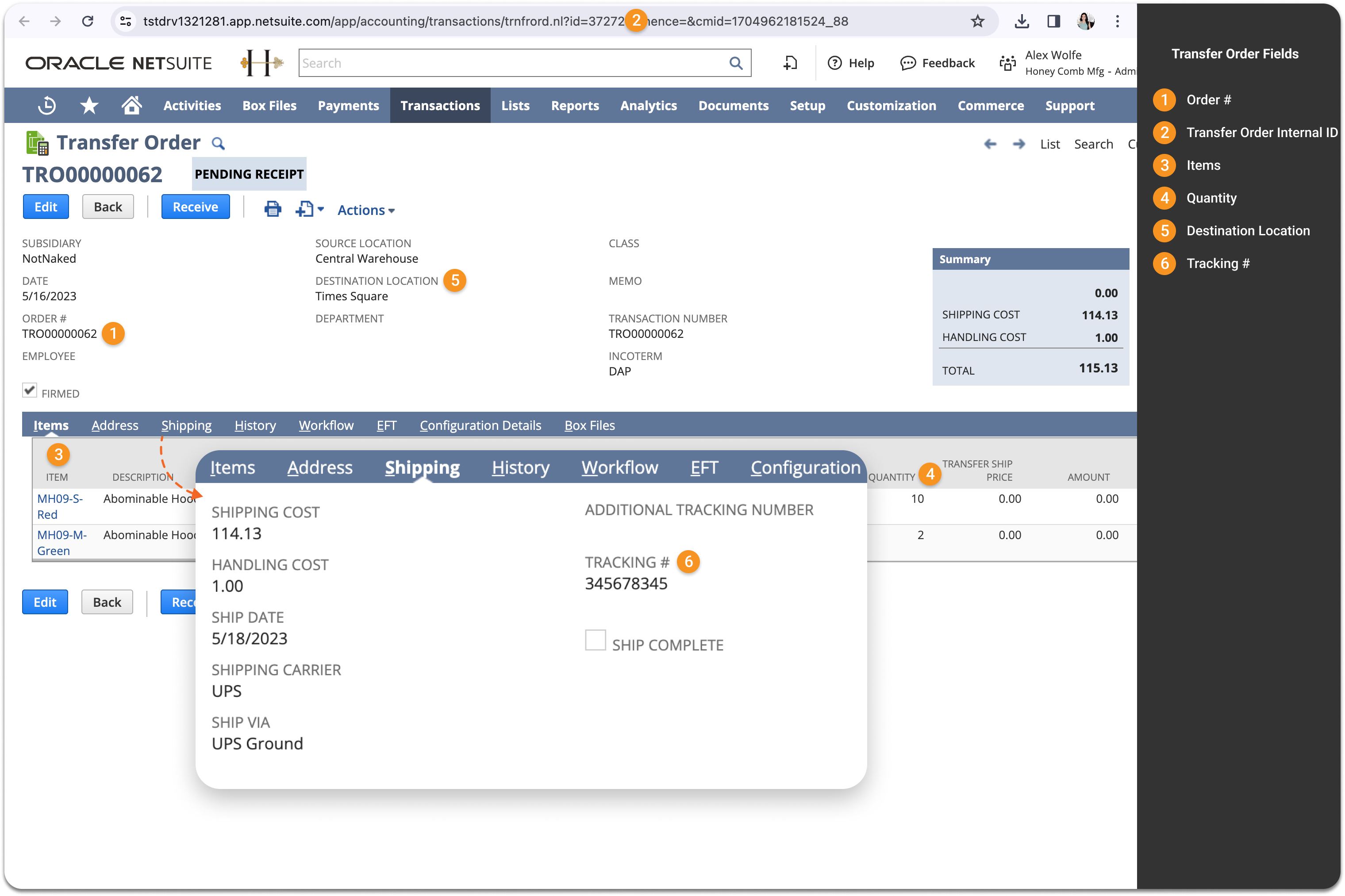
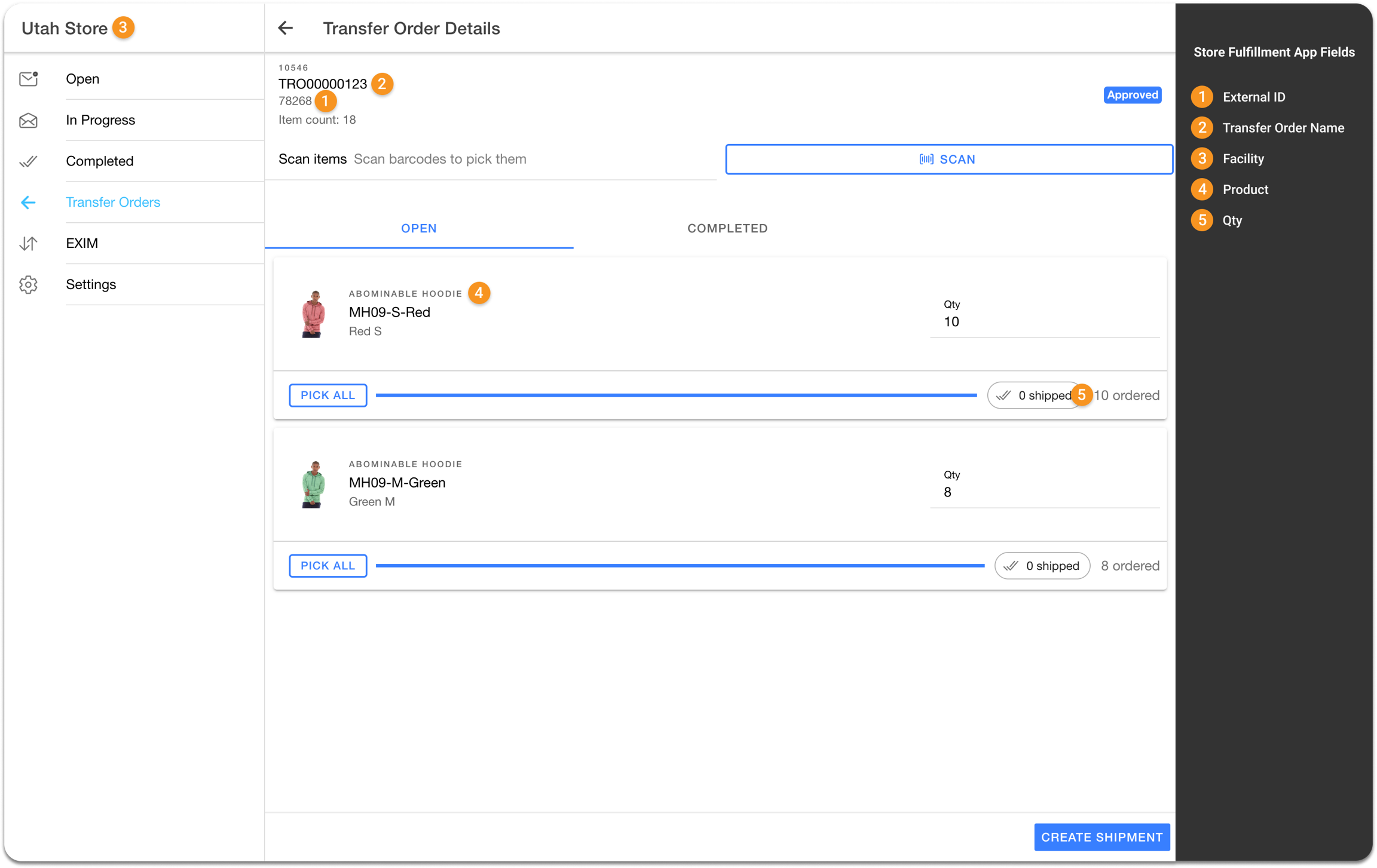
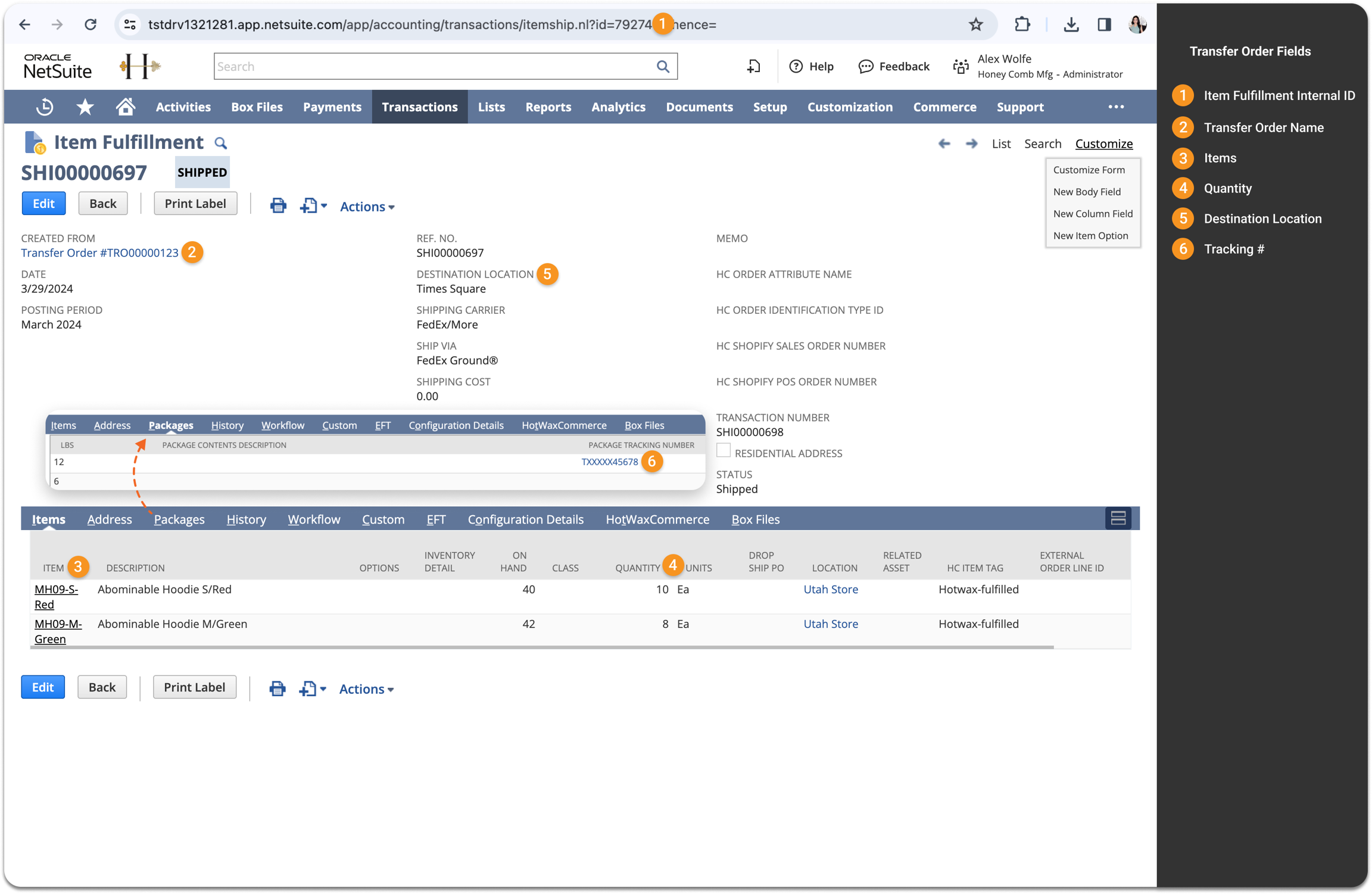
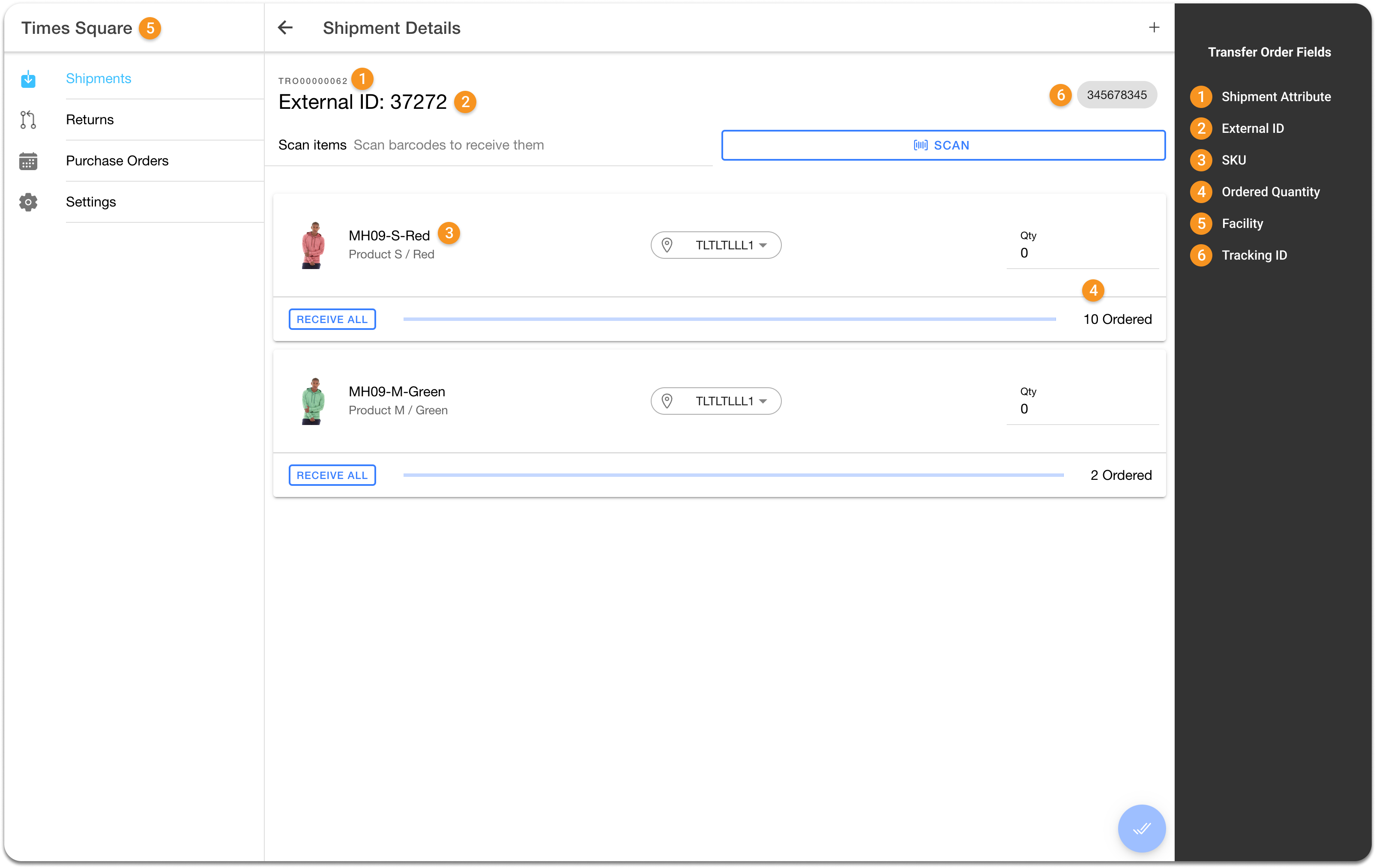
Here's how transfer order fields are mapped in NetSuite and HotWax Commerce for receiving in store:
1
Item Fulfillment Internal ID
External ID
2
Transfer Order Name
Transfer Order Name
3
Items
SKU
4
Quantity
Ordered Quantity
5
Destination Location
Facility
6
Tracking #
Tracking ID


Let's delve into the process with an example
Consider a scenario where a retailer operates two stores: Broadway and Times Square. The Broadway store is experiencing excess stock for a product, so the store manager requests a transfer of 100 quantities to Times Square store, which is experiencing low stock levels. In this event, a store-to-store transfer order is created for 100 quantities in NetSuite.
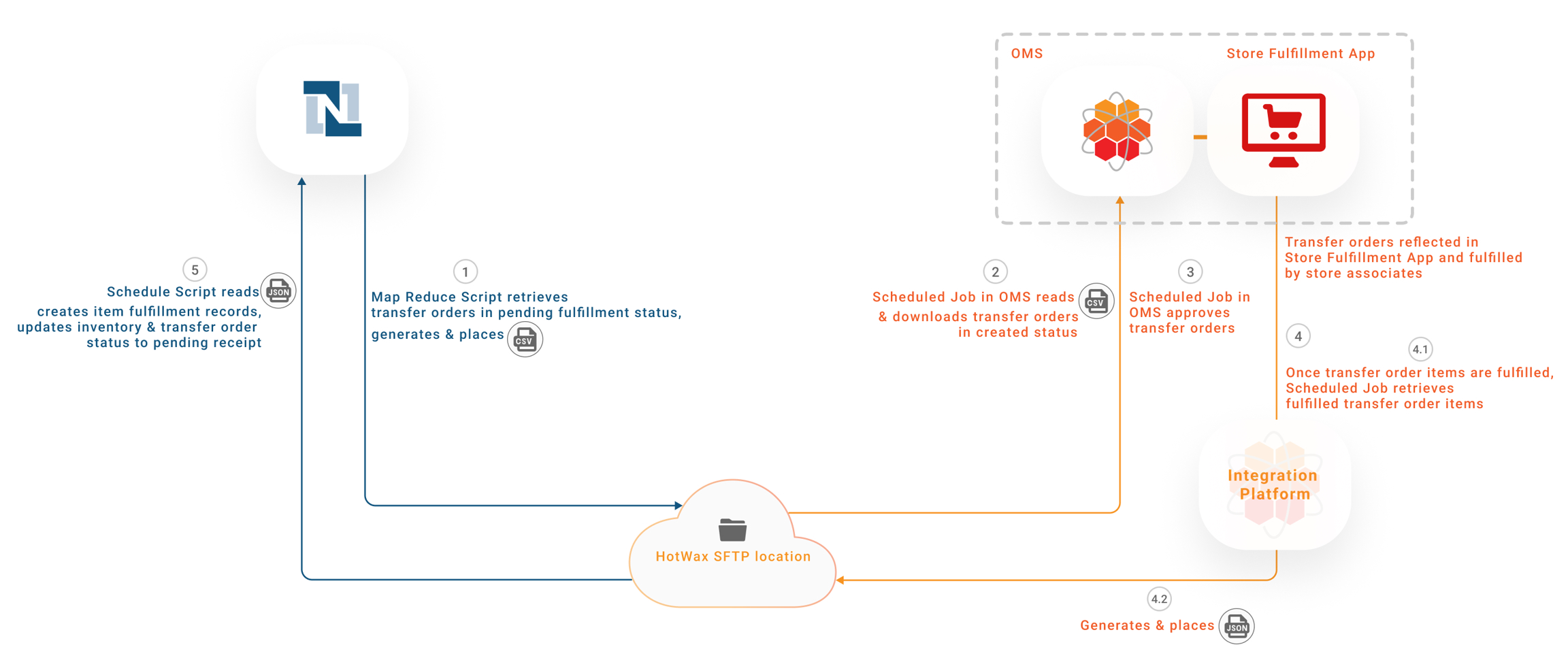
This transfer order has Pending Fulfillment status in NetSuite. A Map Reduce Script generates a CSV file containing details of the Pending Fulfillment transfer order that has the source location as a store and places it at an SFTP location.
A scheduled job in HotWax Commerce OMS reads this CSV file from the SFTP location and downloads the transfer order with a default Created status.
Following this, a scheduled job in HotWax Commerce OMS marks this transfer order as Approved. Upon approval, this transfer order is reflected in the Store Fulfillment App at the Broadway store, and the Available to Promise inventory for the transfer order item is reduced by 100 quantities.
Once the store associates create a shipment for this transfer order and ship the 100 quantities for the product from the Broadway store, the transfer order status automatically updates from Approved to Completed in HotWax Commerce.
Now, a scheduled job in HotWax Commerce Integration Platform generates a JSON file containing details of all these 100 fulfilled transfer order items and places the file at an SFTP location.
In NetSuite, a scheduled SuiteScript reads this JSON file containing a fulfilled transfer order item with 100 quantities from the SFTP location and creates an item fulfillment record of 100 quantities, reducing inventory count by 100 quantities in NetSuite at the Broadway store. Now the transfer order in NetSuite is updated from Pending Fulfillment to Pending Receipt.
A Map Reduce script generates a CSV file containing the item fulfillment record with 100 quantities in Shipped status, where both the source and destination locations are store locations and places it at an SFTP location.
A scheduled job in HotWax Commerce OMS reads the transfer order item fulfillment CSV file from the SFTP location and creates the inbound shipment of 100 quantities in the OMS at the destination Times Square store. Store associates can now receive this inbound shipment at their store using the Inventory Receiving App, and the inventory count will be increased by 100 quantities at the Times Square store in HotWax Commerce.
Following this, a scheduled job in HotWax Commerce Integration Platform generates a JSON file with the item receipt records and securely places the file in an SFTP location.
In NetSuite, a scheduled SuiteScript reads this JSON file containing item receipt records from the SFTP location and increases the quantities by 100 for the transfer order received at the Times Square store, and the transfer order status is updated from Pending Receipt to Received.
Last updated
Was this helpful?