# Store to Warehouse

Store managers can return excess or unsold inventory from stores to the warehouse with store to warehouse transfer orders.

Now, let’s look at how store to warehouse transfer orders are processed:

Inventory planners create transfer orders in NetSuite, specifying the source location as the designated store and the destination location as the warehouse. These transfer orders are automatically assigned a `Pending Fulfillment` status.

These transfer orders are synchronized to HotWax Commerce in the default `Created` status. HotWax Commerce provides a dedicated Store Fulfillment App for store associates to fulfill transfer order items from stores. Once transfer order items are shipped from stores, their status is updated from `Approved` to `Completed` and subsequently inventory count for the shipped items is reduced in HotWax Commerce.

The transfer order items shipped from the store are synchronized to NetSuite so that incoming inventory can be received in the warehouse. This step also updates transfer order status from `Pending Fulfillment` to `Pending Receipt`.

When transfer order items are received in the warehouse, inventory counts for the corresponding items are automatically increased in NetSuite and the transfer order status is updated from `Pending Receipt` to `Received`.

Inventory count for transfer order items received in the warehouse is increased in HotWax Commerce on performing its periodic inventory sync from NetSuite.

## Workflow

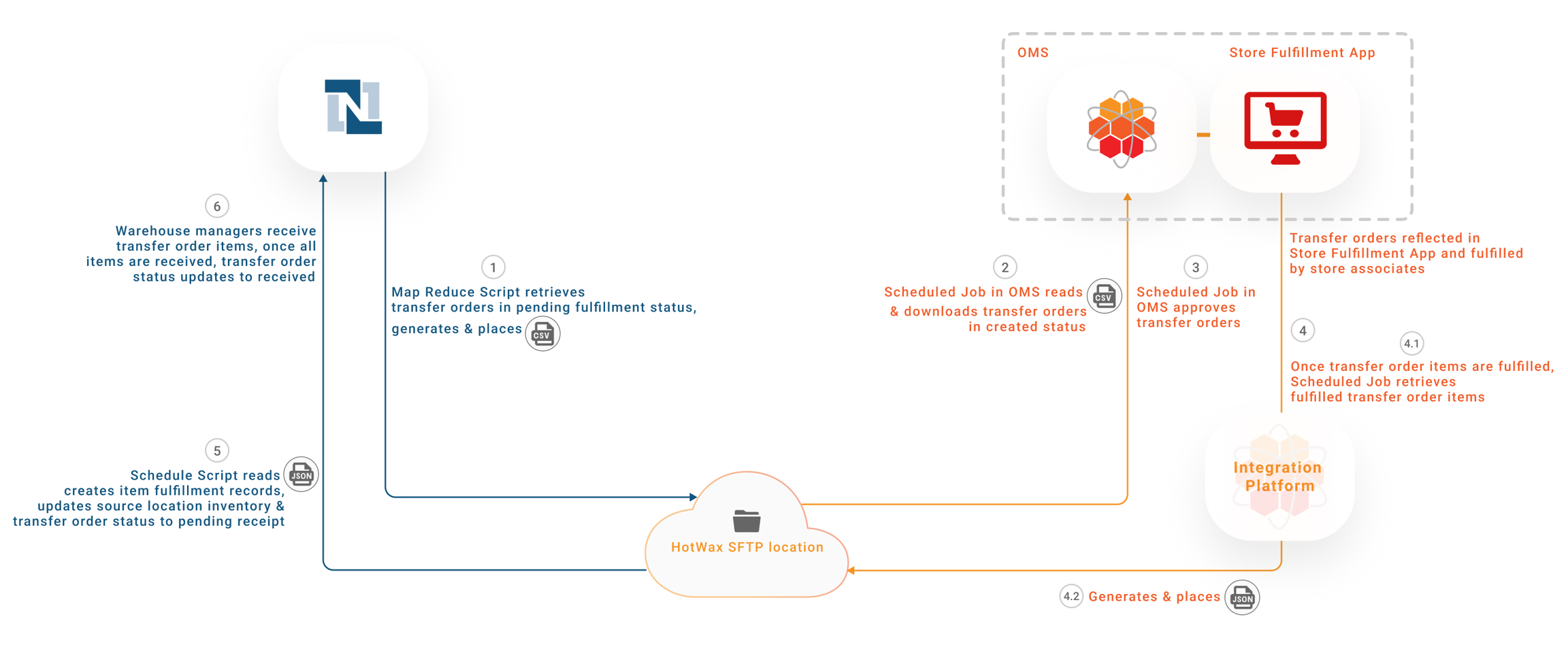
<figure><img src="https://1771238043-files.gitbook.io/~/files/v0/b/gitbook-x-prod.appspot.com/o/spaces%2FXPO8jTog8zeT6LrxNy36%2Fuploads%2Fgit-blob-3a53ed7636ab5657d81bbc36992136099c781d2e%2F36.png?alt=media" alt=""><figcaption><p>Store to warehouse transfer order</p></figcaption></figure>

### Create Transfer Orders in NetSuite

1. **Export Created Transfer Orders from NetSuite:** Inventory planners create transfer orders in NetSuite, specifying the source location as the designated store and the destination location as the warehouse. These transfer orders are automatically assigned a `Pending Fulfillment` status.

   At regular intervals, a Map Reduce script runs a specific Saved Search in NetSuite and identifies transfer orders with a `Pending Fulfillment` status that have a source location set as the `Store`. This script compiles the relevant data into a CSV file, which is then securely placed at an SFTP location.

**SuiteScript**

Export Transfer Orders to SFTP

```
HC_MR_ExportedStoreTransferOrderCSV.js
```

**SFTP Location**

```
/home/{sftp-username}/netsuite/transferorder/csv
```

2. **Import Transfer Orders into HotWax Commerce:** A scheduled job in HotWax Commerce OMS reads the transfer orders CSV file from the SFTP location and downloads transfer orders in HotWax Commerce with a default `Created` status.
3. **Approve Transfer Orders:** A scheduled job in HotWax Commerce OMS identifies all transfer orders in the `Created` status and automatically marks them as `Approved`.

{% hint style="success" %}
**Why is transfer order approval necessary?**\
Stores fulfill transfer orders using the Store Fulfillment App. These transfer orders are only reflected in the app after they have been approved in HotWax Commerce.

Upon approval, HotWax Commerce also reduces the Available to Promise inventory for the transfer order items that will be fulfilled from the store.
{% endhint %}

**Job in HotWax Commerce**

Import Transfer Orders from SFTP

```
Import Transfer Order
```

Approve Transfer Orders

```
Approve transfer orders
```

### Fulfill Transfer Orders using the Store Fulfillment App

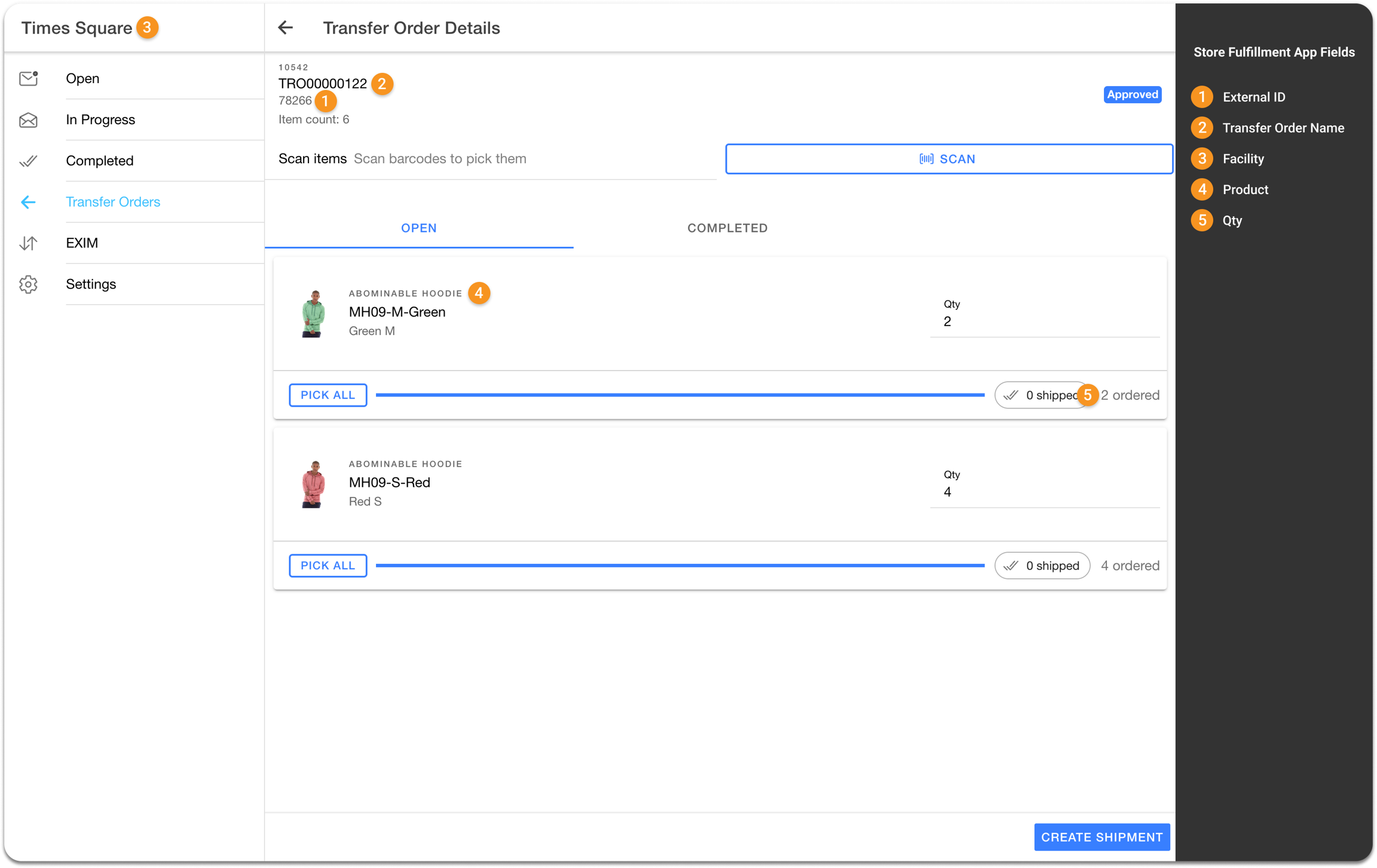
Once approved, transfer orders are automatically reflected at the source location in the Store Fulfillment App so that store associates can create shipments and ship transfer order items.

* Store associates pick the transfer order items they want to fulfill from their store.
* After picking the items, store associates pack them and proceed to create fulfillments for each item.
* Once the shipment has been created, store associates fetch shipping labels from the carrier and the corresponding tracking codes.
* After all items are shipped, transfer orders status is automatically updated from `Approved` to `Completed` in HotWax Commerce.

Once transfer order items are fulfilled from the store, the inventory count for the corresponding items is automatically reduced in HotWax Commerce.

{% hint style="info" %}
Multiple fulfillments against a single transfer order can be created in the Store Fulfillment App. For example, if a transfer order contains multiple items, the store might choose to dispatch some items initially and fulfill the remaining ones later. In this event, the transfer order remains in the `Approved` status in HotWax Commerce and transitions to `Completed` status when all items within the transfer order have been fulfilled.
{% endhint %}

4. **Export Fulfilled Transfer Orders Items from HotWax Commerce:** A scheduled job in HotWax Commerce Integration Platform generates a JSON file with all the transfer order items that are in the `Completed` status and securely places the file in an SFTP location, making it accessible for NetSuite.

**Job in HotWax Commerce**

Export Fulfilled Transfer Order Items to SFTP

```
generate_TransferOrderFulfilledItemsFeed
```

**SFTP Location**

```
/home/{sftp-username}/netsuite/transferorder/oms-fulfillment
```

5. **Import Fulfilled Transfer Orders Items in NetSuite:** In NetSuite, a scheduled SuiteScript reads this JSON file containing fulfilled transfer order items from the SFTP location. The script iterates through each record, creates item fulfillment records, and reduces inventory count in NetSuite for items shipped from the store.

   Once item fulfillment records are created for each transfer order item, the status of the transfer order in NetSuite is automatically updated from `Pending Fulfillment` to `Pending Receipt`.

**SuiteScripts**

Import Fuflilled Transfer Order Items from SFTP

```
HC_SC_ImportTOItemFulfillment.js
```

1. **Receive Transfer Orders in NetSuite:** Inventory planners manually initiate the receiving process in NetSuite for the store transferred inventory upon its arrival at the warehouse.

### Automated Transfer Order Status Update

After the receiving process is completed, the transfer order is marked as `Received`, indicating that all transfer order items have been successfully received at the warehouse. Additionally, the inventory count for the newly received inventory is updated in NetSuite.

### Update Inventory Count in HotWax Commerce

Inventory for transfer order items received in the warehouse is synchronized when HotWax Commerce performs its daily inventory sync from NetSuite.

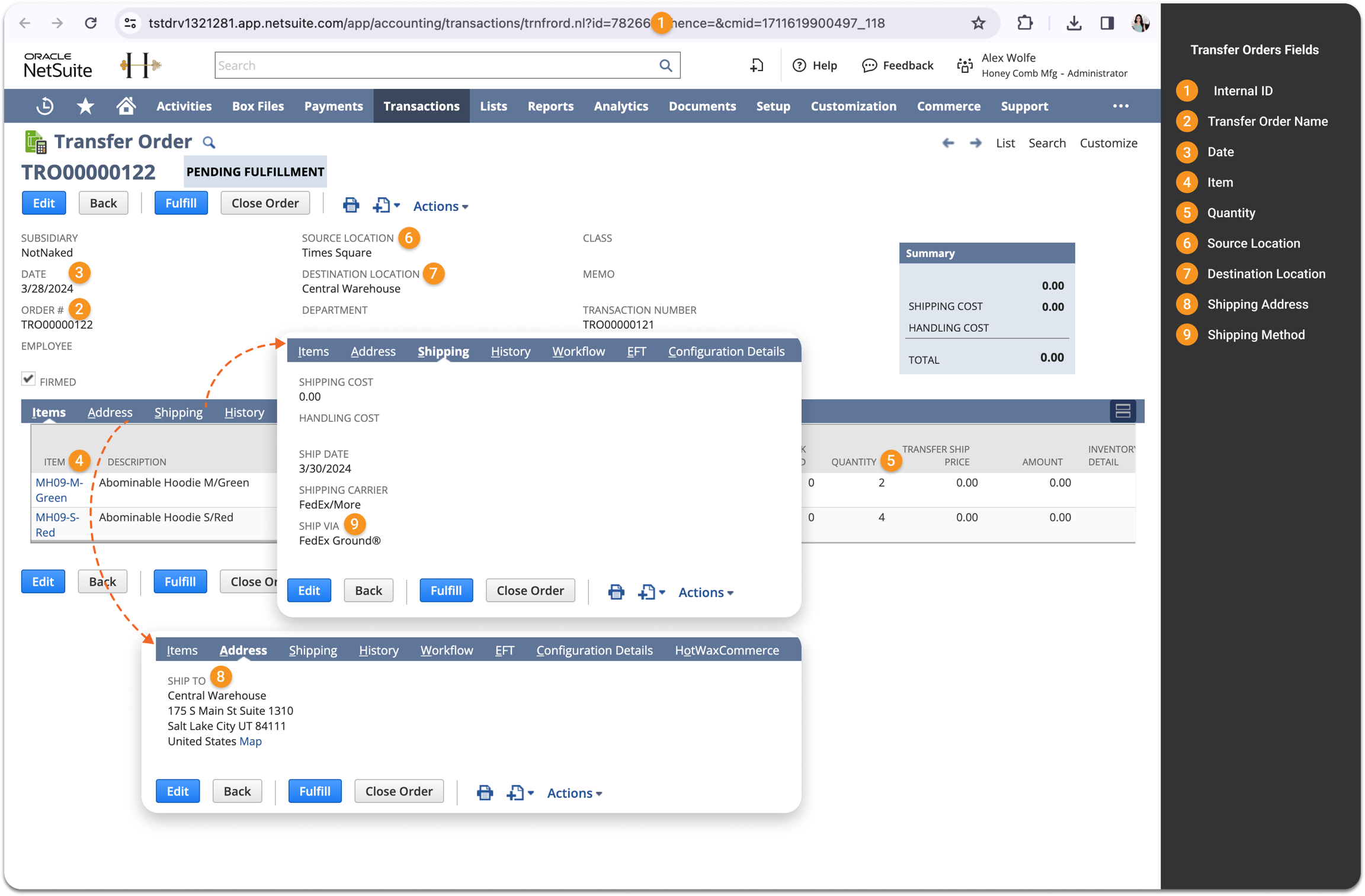
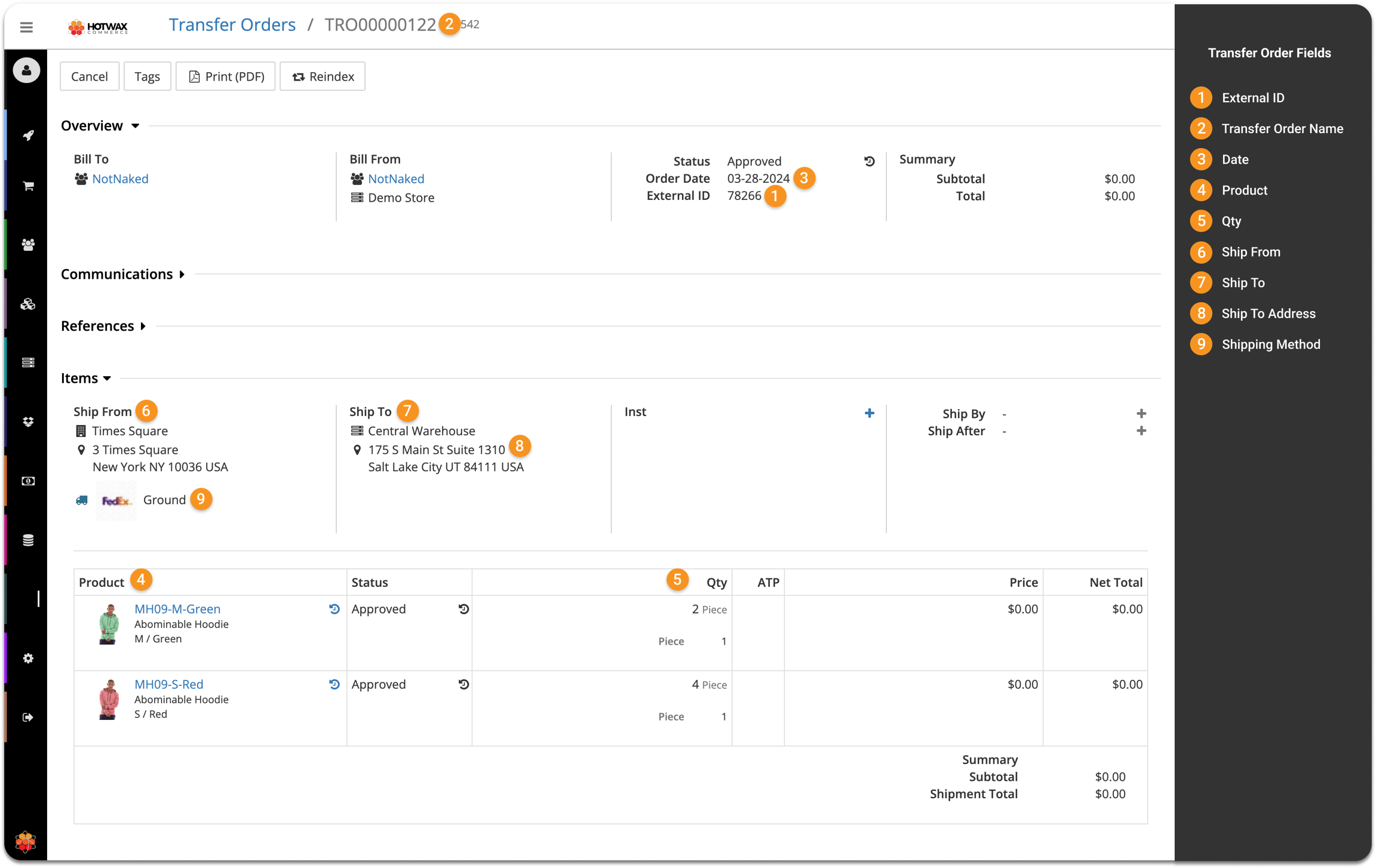
**Here's how transfer order fields are mapped in NetSuite and HotWax Commerce**

<table data-full-width="false"><thead><tr><th width="157">S.No.</th><th width="257">Fields in NetSuite</th><th>Fields in HotWax Commerce</th></tr></thead><tbody><tr><td>1</td><td>Internal ID</td><td>External ID</td></tr><tr><td>2</td><td>Transfer Order Name</td><td>Transfer Order Name</td></tr><tr><td>3</td><td>Date</td><td>Date</td></tr><tr><td>4</td><td>Item</td><td>Product</td></tr><tr><td>5</td><td>Quantity</td><td>Qty</td></tr><tr><td>6</td><td>Source Location</td><td>Ship From</td></tr><tr><td>7</td><td>Destination Location</td><td>Ship To</td></tr><tr><td>8</td><td>Shipping Address</td><td>Ship To Address</td></tr><tr><td>9</td><td>Shipping Method</td><td>Shipping Method</td></tr></tbody></table>

{% tabs %}
{% tab title="Transfer Order Fields in NetSuite" %}

<figure><img src="https://1771238043-files.gitbook.io/~/files/v0/b/gitbook-x-prod.appspot.com/o/spaces%2FXPO8jTog8zeT6LrxNy36%2Fuploads%2Fgit-blob-805f29fe15a267137c29c5f4d8d1af663a5d016e%2F37.png?alt=media" alt=""><figcaption><p>Transfer Order Fields Mapping in NetSuite</p></figcaption></figure>
{% endtab %}

{% tab title="Transfer Order Fields in HotWax Commerce" %}

<figure><img src="https://1771238043-files.gitbook.io/~/files/v0/b/gitbook-x-prod.appspot.com/o/spaces%2FXPO8jTog8zeT6LrxNy36%2Fuploads%2Fgit-blob-95bfe5a5acff6dac5c0ecd620d7e79959d3957dc%2F38.png?alt=media" alt=""><figcaption><p>Transfer Order Fields Mapping in HotWax Commerce</p></figcaption></figure>
{% endtab %}
{% endtabs %}

<figure><img src="https://1771238043-files.gitbook.io/~/files/v0/b/gitbook-x-prod.appspot.com/o/spaces%2FXPO8jTog8zeT6LrxNy36%2Fuploads%2Fgit-blob-1da9311f0599d94f90fb2b4e0f2cbe7451e48262%2F39.png?alt=media" alt=""><figcaption><p>Transfer Order Items Fulfilled in HotWax Commerce "Store Fulfillment App"</p></figcaption></figure>

{% file src="<https://1771238043-files.gitbook.io/~/files/v0/b/gitbook-x-prod.appspot.com/o/spaces%2FXPO8jTog8zeT6LrxNy36%2Fuploads%2Fgit-blob-b29ae7c187973ac1e975f28070fd46ebaa60e771%2FTransfer%20Order%20Fulfilled%20Items%20Feed.txt?alt=media>" %}