> For the complete documentation index, see [llms.txt](https://docs.hotwax.co/documents/llms.txt). Markdown versions of documentation pages are available by appending `.md` to page URLs; this page is available as [Markdown](https://docs.hotwax.co/documents/learn-netsuite/troubleshooting/finding-logs.md).
# Error Logs
Discover this troubleshooting guide for viewing NetSuite order import error logs
## Objective
The objective of this document is to help users identify and resolve cases where an order sent from HotWax Commerce Order Management System (OMS) does not get created in NetSuite. This guide enables users to verify the root cause by reviewing NetSuite import logs and taking appropriate actions.
## What This Document Addresses
This document addresses scenarios where:
* An order is sent from OMS but is not visible in NetSuite.
* The order sync feed history is present and the order appears successful in OMS but fails during processing in NetSuite.
* Users need to check NetSuite logs to identify the reason for failure.
## Resolution Steps
### Step 1: Navigate to CSV import status
Log in to NetSuite and navigate to:
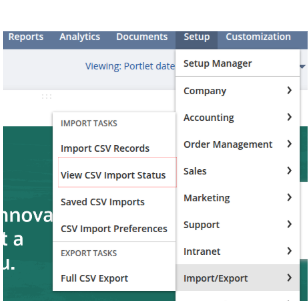
`Setup` → `Import/Export` → `View CSV Import Status`
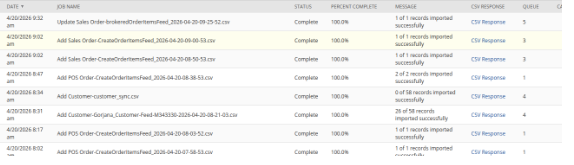
This page displays all CSV imports processed in NetSuite, including orders received from OMS.
### Step 2: Identify the relevant import file
Locate the file corresponding to your order by:
* Matching the file name with the one available in SFTP.
* Filtering based on the order date and time.
* Identifying files processed around the time when the order was expected to sync
### Step 3: Review import status
Each import file will display a processing status such as:
* “1 of 1 records imported successfully.”
* “26 of 58 records imported successfully.”
* “32 of 32 records imported successfully.”
Focus on files where records are either partially processed or failed, as these indicate issues during import.
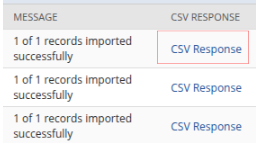
### Step 4: Open CSV response
Click the `CSV Response` link corresponding to the selected file.
This opens a detailed response showing errors encountered during the import process.
### Step 5: Analyze the Error Message
Review the error message carefully. The response typically includes a clear description of the issue or the specific field causing the error.
#### Common types of errors include:
* Invalid customer reference.
* Invalid location reference.
* Invalid item reference.
### Step 6: Correct the issue in OMS
Based on the error identified:
* Update the required data in OMS, such as the NetSuite Internal Customer ID or product information.
* Check that all fields are correctly updated.
### Step 7: Reprocess the order
After making the necessary corrections:
* Navigate to the order details page in OMS.
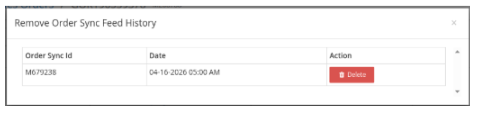
* Delete the existing `Order Sync Feed History`.
* This allows the order to be picked up again and sends the corrected data to NetSuite.
---
# Agent Instructions
This documentation is published with GitBook. GitBook is the documentation platform designed so that both humans and AI agents can read, navigate, and reason over technical content effectively. Learn more at gitbook.com.
## Querying This Documentation
If you need additional information that is not directly available in this page, you can query the documentation dynamically by asking a question.
Perform an HTTP GET request on the current page URL with the `ask` query parameter, and the optional `goal` query parameter:
```
GET https://docs.hotwax.co/documents/learn-netsuite/troubleshooting/finding-logs.md?ask=&goal=
```
`ask` is the immediate question: it should be specific, self-contained, and written in natural language.
`goal` is optional and describes the broader end goal you are ultimately trying to accomplish on behalf of the user. GitBook uses it to tailor the answer towards what is most useful for that goal.
The response will contain a direct answer to the question and relevant excerpts and sources from the documentation.
Use this mechanism when the answer is not explicitly present in the current page, you need clarification or additional context, or you want to retrieve related documentation sections.