# Transfer Orders Lifecycle

Transfer orders are created in the ERP system, they serve various purposes, including:

* <mark style="color:orange;">**Warehouse to Store:**</mark> When there is a need to replenish inventory at retail stores from the central warehouse or distribution center, transfer orders can be initiated to move the required items from the warehouse to the stores.
* <mark style="color:orange;">**Between Stores:**</mark> In cases where one store has excess inventory that another store requires, transfer orders can be used to transfer inventory directly between stores, optimizing stock levels across the retail network.
* <mark style="color:orange;">**Store to Warehouse:**</mark> Sometimes, stores might need to return excess or unsold inventory back to the warehouse for consolidation or redistribution. Transfer orders facilitate this movement from the stores back to the warehouse.

To explain the Transfer Order Lifecycle BPM, we've opted NetSuite as the ERP system, Shopify for eCommerce, and HotWax Commerce for the OMS because most of our customers use this tech stack.

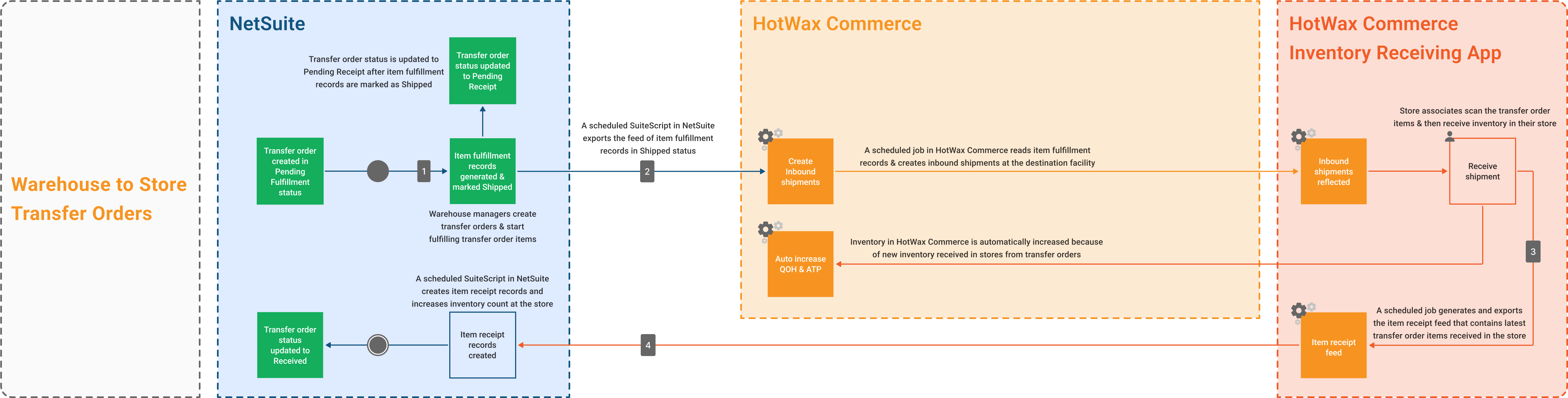
## Warehouse to Store Transfer Orders

<figure><img src="https://2467405234-files.gitbook.io/~/files/v0/b/gitbook-x-prod.appspot.com/o/spaces%2FfkS6HE1ADY5pjfJTizhz%2Fuploads%2Fgit-blob-10bd654ec69a0f5c1aea4b64d070b9dfcf58741a%2FWarehousetoStoreTObpm.png?alt=media" alt=""><figcaption><p>Warehouse to store transfer orders lifecycle business process model</p></figcaption></figure>

### 1. Transfer Orders Created in NetSuite

* Inventory planners create transfer orders in NetSuite, specifying the source location as warehouse and the destination location as store. These transfer orders are automatically assigned a <mark style="color:orange;">**“Pending Fulfillment”**</mark> status.
* Fulfillment teams start preparing the transfer order items for dispatch from the warehouse. Once they pick, pack and ship the transfer order items, item fulfillment records are automatically generated in NetSuite with the status <mark style="color:orange;">**“Shipped”**</mark>.
* As soon as the item fulfillment records are marked as <mark style="color:orange;">**“Shipped”**</mark>, inventory counts for the items shipped are reduced in NetSuite and the transfer order status is updated from <mark style="color:orange;">**“Pending Fulfillment”**</mark> to <mark style="color:orange;">**“Pending Receipt”**</mark>.

### 2. Create Inbound Shipments in HotWax Commerce and Start Receiving

* A scheduled script in NetSuite exports the feed of item fulfillment records in <mark style="color:orange;">**“Shipped”**</mark> status. A scheduled job in HotWax Commerce reads this feed and creates inbound shipments at the destination facility.
* HotWax Commerce provides an `Inventory Receiving App` for store associates to easily receive any new inventory arriving at stores.
* Inbound shipments that have been created are automatically reflected in the `Inventory Receiving App`, allowing store associates to receive them in store.

  For example, if a transfer order specifies the Central Warehouse as the source and the Brooklyn Store as the destination, the items from this transfer order will be automatically reflected in the `Inventory Receiving App` at the Brooklyn Store.
* Store associates scan the transfer order items and start receiving inventory. Upon receiving shipments, item receipt records are generated in HotWax Commerce and subsequently, the inventory counts for the items received in the store are increased.

{% hint style="success" %}
It’s crucial to note that inventory counts for the items shipped from the warehouse are reduced in HotWax Commerce on performing daily inventory sync with NetSuite.
{% endhint %}

### 3. Generate and Export Item Receipt Feed from HotWax Commerce

* A scheduled job in HotWax Commerce generates an item receipt feed containing the latest transfer order items that have been received in the store so that this update can be synchronized to NetSuite.

### 4. Item Receipt Records Created in NetSuite

* A scheduled SuiteScript in NetSuite reads the item receipt feed and two actions take place:
  * Item receipt records are created in NetSuite and subsequently, inventory count at the store for the corresponding items are increased.
  * The transfer order status is updated from <mark style="color:orange;">**“Pending Receipt”**</mark> to <mark style="color:orange;">**“Received”**</mark>.

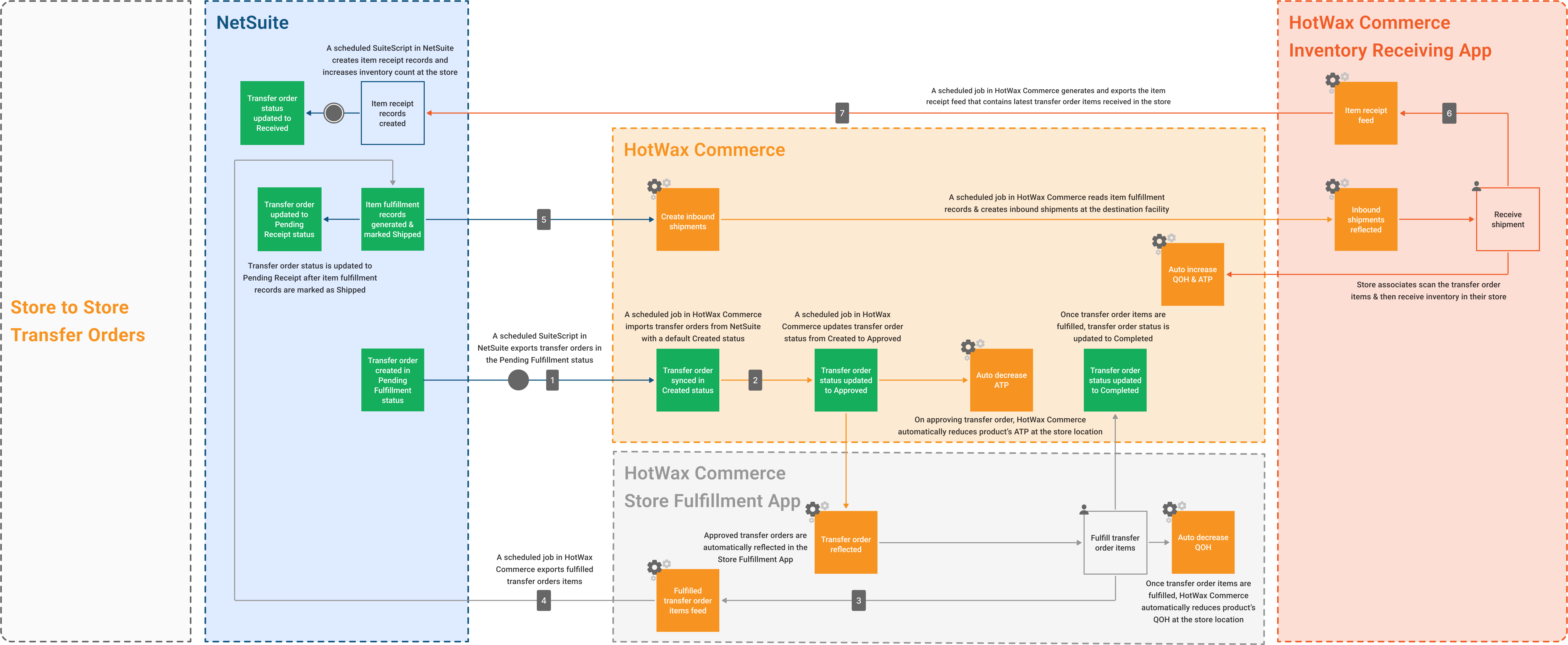
## Store to Store Transfer Orders

<figure><img src="https://2467405234-files.gitbook.io/~/files/v0/b/gitbook-x-prod.appspot.com/o/spaces%2FfkS6HE1ADY5pjfJTizhz%2Fuploads%2Fgit-blob-8b8f43514a06f835bdb7bcc20eaf2f9a999d4385%2FStoretoStoreTObpm.png?alt=media" alt=""><figcaption><p>Store to store transfer orders lifecycle business process model</p></figcaption></figure>

### 1. Transfer Orders Created in NetSuite and Imported into HotWax Commerce

* Similar to warehouse to store transfer orders, store to store transfer orders are also created in NetSuite, specifying the source location as store and the destination location also as a store. These transfer orders are automatically assigned a <mark style="color:orange;">**“Pending Fulfillment”**</mark> status.
* A scheduled SuiteScript in NetSuite exports transfer orders that have a Pending Fulfillment status and the source location as the store. After that, a scheduled job in HotWax Commerce reads the transfer orders feed and downloads transfer orders in HotWax Commerce with a default <mark style="color:orange;">**“Created”**</mark> status.
* These transfer orders are synchronized to HotWax Commerce so that they can be fulfilled from stores. HotWax Commerce provides a dedicated `Store Fulfillment App` for store associates to fulfill transfer order items from stores.

### 2. Approve Transfer Orders in HotWax Commerce

A scheduled job in HotWax Commerce identifies transfer orders that have a <mark style="color:orange;">**“Created”**</mark> status and automatically marks them <mark style="color:orange;">**“Approved”**</mark>.

**What happens when transfer orders are approved?**

* Upon approval, HotWax Commerce reduces the Available to Promise inventory for the transfer order items that will be fulfilled from the store.
* Approved transfer orders are automatically reflected in the `Store Fulfillment App`.
* Store associates pick the transfer order items they want to fulfill from their store. After picking the items, store associates pack them and proceed to create fulfillments for each item.
* Once the fulfillment has been created, store associates fetch shipping labels from the carrier and the corresponding tracking codes.
* After all items are shipped, transfer orders status is automatically updated from <mark style="color:orange;">**“Approved”**</mark> to <mark style="color:orange;">**“Completed”**</mark> in HotWax Commerce.

Once transfer order items are fulfilled from the store, the QOH for the corresponding items is automatically reduced in HotWax Commerce.

### 3. Generate and Export Item Fulfilled Feed from HotWax Commerce

* A scheduled job in HotWax Commerce generates a fulfilled transfer order items feed containing the latest transfer order items that have been fulfilled from the store so that this update can be synchronized to NetSuite.

### 4. Item Fulfillment Records Created in NetSuite

* A scheduled SuiteScript in NetSuite reads the fulfilled transfer order items feed and two actions take place:
  * Item fulfilled records are created in NetSuite and marked <mark style="color:orange;">**“Shipped”**</mark>. Subsequently, inventory count at the store for the corresponding items are reduced.
  * The transfer order status is updated from <mark style="color:orange;">**“Pending Fulfillment”**</mark> to <mark style="color:orange;">**“Pending Receipt”**</mark>. This step concludes the store to warehouse transfer orders flow.

### 5. Create Inbound Shipments in HotWax Commerce and Start Receiving

* As discussed in `warehouse to store` transfer orders lifecycle, for store to store transfer orders, the receiving process in stores remains consistent. A scheduled SuiteScript in NetSuite exports the feed of item fulfillment records in <mark style="color:orange;">**“Shipped”**</mark> status. After that, a scheduled job in HotWax Commerce reads this feed and creates inbound shipments at the destination facility.
* Inbound shipments that have been created are automatically reflected in the `Inventory Receiving App`, allowing store associates to receive them in store.

  For example, if a transfer order specifies the Times Square Store as the source and the Brooklyn Store as the destination, the items from this transfer order will be automatically reflected in the `Inventory Receiving App` at the Brooklyn Store.
* Store associates scan the transfer order items and start receiving inventory. Upon receiving shipments, item receipt records are generated in HotWax Commerce and subsequently, the inventory counts for the items received in the store are increased.

### 6. Generate and Export Item Receipt Feed from HotWax Commerce

* A scheduled job in HotWax Commerce generates an item receipt feed containing the latest transfer order items that have been received in the store so that this update can be synchronized to NetSuite.

### 7. Item Receipt Records Created in NetSuite

* A scheduled SuiteScript in NetSuite reads the item receipt feed and two actions take place:
  * Item receipt records are created in NetSuite and subsequently, inventory count at the store for the corresponding items are increased.
  * The transfer order status is updated from <mark style="color:orange;">**“Pending Receipt”**</mark> to <mark style="color:orange;">**“Received”**</mark>. This step concludes the store to store transfer orders flow.

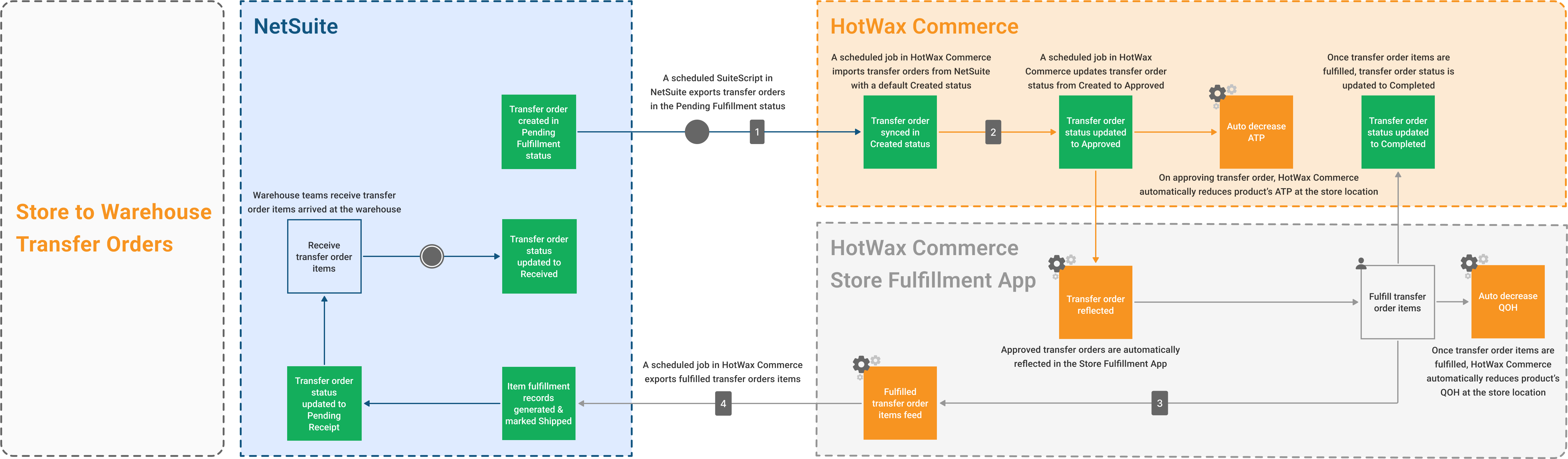
## Store to Warehouse Transfer Orders

<figure><img src="https://2467405234-files.gitbook.io/~/files/v0/b/gitbook-x-prod.appspot.com/o/spaces%2FfkS6HE1ADY5pjfJTizhz%2Fuploads%2Fgit-blob-8bfd5c7a54ab081ada71b699b8187720a1359706%2FStoretoWarehouseTObpm.png?alt=media" alt=""><figcaption><p>Store to warehouse transfer orders lifecycle business process model</p></figcaption></figure>

### 1. Transfer Orders Created in NetSuite

* Even when store managers want to transfer inventory to warehouses, the transfer order will be created in NetSuite, specifying the source location as a store and the destination location as a warehouse.
* Once created, these transfer orders are automatically assigned a <mark style="color:orange;">**“Pending Fulfillment”**</mark> status.

{% hint style="info" %}
Similar to the `store to store` transfer order lifecycle we discussed above, <mark style="color:orange;">**(2)**</mark> importing transfer orders into HotWax Commerce, approving them, fulfilling them using the `Store Fulfillment App` and <mark style="color:orange;">**(3)**</mark> ultimately synchronizing item fulfillment records with NetSuite remains the same.
{% endhint %}

### 4. Receive Transfer Orders in NetSuite

* Finally, the inventory planning team manually initiates the receiving process in NetSuite for the store transferred inventory upon its arrival at the warehouse.
* After the receiving process is completed, the transfer order status is automatically updated from <mark style="color:orange;">**“Pending Receipt”**</mark> to <mark style="color:orange;">**“Received”**</mark>, indicating that all transfer order items have been successfully received at the warehouse. Additionally, the inventory count for the newly received inventory is updated in NetSuite.

{% hint style="success" %}
It’s crucial to note that inventory counts for the items received in the warehouse are increased in HotWax Commerce on performing daily inventory sync with NetSuite.
{% endhint %}