> For the complete documentation index, see [llms.txt](https://docs.hotwax.co/documents/llms.txt). Markdown versions of documentation pages are available by appending `.md` to page URLs; this page is available as [Markdown](https://docs.hotwax.co/documents/retail-operations/orders/pre-orders/purchase-order-management.md).
# Purchase Order Management
Discover how to manage uploaded purchase orders in HotWax Commerce, including viewing, editing, making changes, or canceling purchase orders.
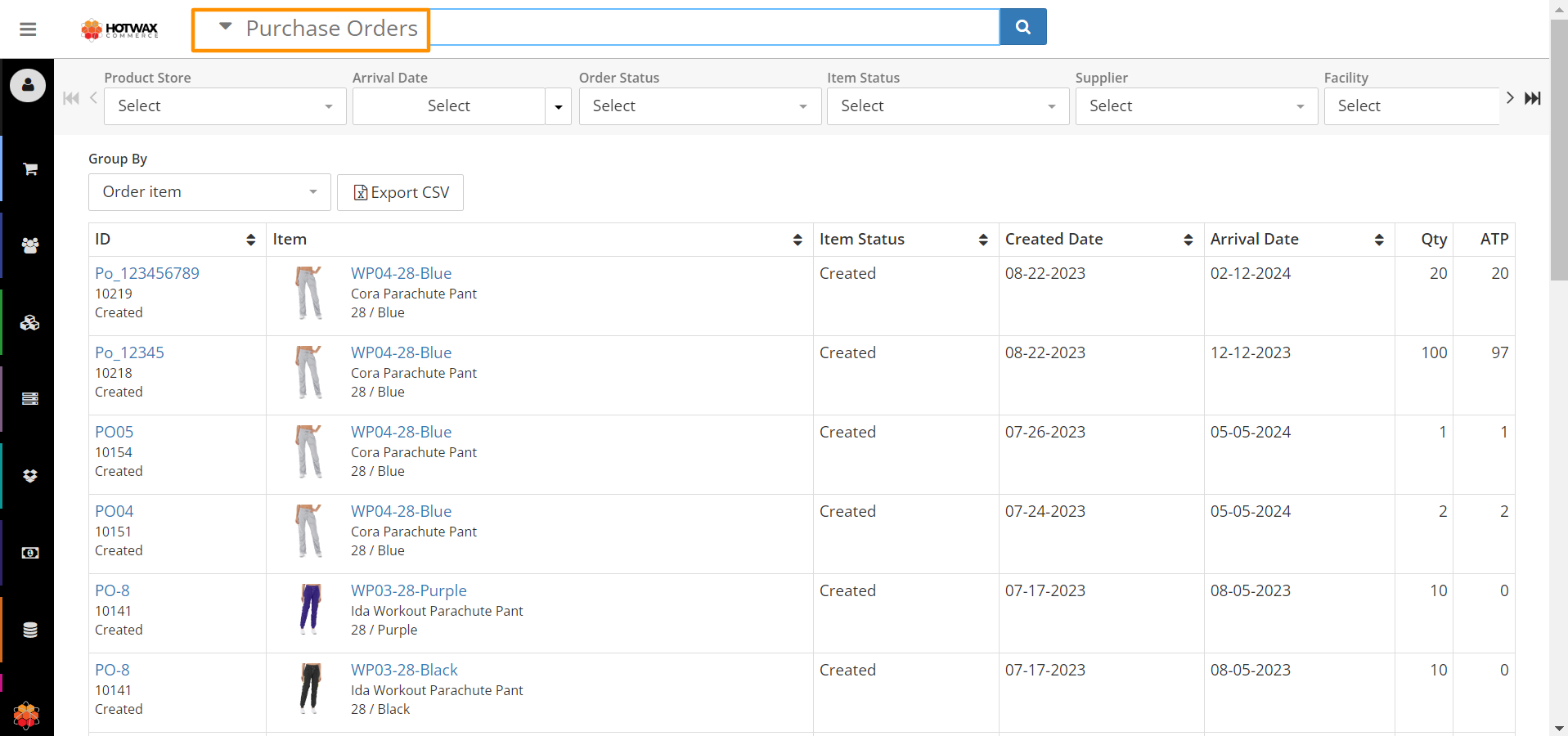
Once the Purchase order has successfully been uploaded to HotWax Commerce, Merchandisers can view the purchase orders via the `Find Purchase Order` Page. This can be done by clicking on `Procurement` > `Purchase Orders` from the HotWax Commerce’s Hamburger menu.
The `Find Purchase Orders` page showcases the following details:
* Consolidated View: Offers a comprehensive display of all upcoming purchase orders and their individual items.
* Purchase Order Specifications: Presents purchase orders in an exploded pattern, revealing distinct specifications for each item.
* Purchase Order Status: Indicates the current status of the purchase order, whether it's in a created, approved, completed, or canceled state.
* On-Hand Inventory Overview: Provides insights into available quantities and available-to-promise inventory on Shopify.
* Created Date and Arrival Date: Merchandisers can easily view when the purchase order was created in HotWax Commerce and when will the inventory of the purchase order items arrive.
Merchandisers can easily view individual Purchase orders by searching Purchase Order ID, HotWax Commerce ID, or Product name from the search bar. Moreover, they have the ability to filter search results based on PO status, arrival date, or facilities.\
\
Additional functionalities that are available on the `Find Purchase Orders` page are:
* Grouping: Merchandisers have various options to view purchase order items, they can group the items by order items, products, and their arrival dates, etc. For example, if a merchandiser changes the grouping to a parent product, they will be able to see all the parent products and the inventory overview of that product, irrespective of the variant's inventory.
* Export CSV: Merchandisers can export the CSV files of all the purchase orders for external auditing purposes.
Once the merchandiser has located their desired purchase order, they can execute various flows to ensure precise synchronization of pre-order information with the eCommerce platform.
Find Purchase Order
## Export Associated Sales Orders
Merchandisers can export a CSV of all sales orders associated with a specific purchase order. This feature is particularly useful when a purchase order is delayed, as it helps identify the exactly which sales orders are impacted. By exporting this list after reviewing allocations, merchandisers can quickly take necessary actions for the affected orders.
The `Export CSV` button is located in the `Purchase Order Summary` section of the `Purchase Order Detail` page, and is available when the purchase order is in `Created` or `Approved` status.
The exported CSV includes the following details for each associated sales order:
* Order ID
* External ID
* Status
* Order Date
* Customer Name
* Email
* Phone
This granular information allows CSR and merchandiser teams to proactively reach out to customers if a purchase order is delayed, providing a better customer experience by keeping them informed about their order status.
## Cancel Purchase Order
Merchandisers may opt to cancel purchase orders due to various reasons such as supplier issues or lack of demand. HotWax Commerce allows the cancellation of uploaded purchase orders by following these steps:
1. Navigate to `Procurement` > `Purchase Orders` > `Find Purchase Order`.
2. Select the `desired purchase order` > Open `Purchase Order Detail page`.
3. The `cancel` button, located at the top left of the page, facilitates the cancellation process, changing the purchase order status to `canceled`.
{% embed url="" %}
Cancel Purchase Order
{% endembed %}
## Edit Arrival Date
Merchandisers can modify the purchase order arrival date if there’s a change from the supplier's end. This alteration assists in providing the accurate promise date to the customers
1. Navigate to the desired `purchase order detail` page.
2. View purchase order item details at the bottom of the page. Click the `pencil` icon to adjust the arrival date.
3. Changes made can be tracked by clicking on the `history` icon in the line item field.
For bulk updating of all product arrival dates, merchandisers can import another CSV in the import app and cancel the existing PO.
{% embed url="" %}
Edit Arrival Date
{% endembed %}
## Change the Quantity of Purchase Order Items
In cases where product demand differs from expectations, merchandisers can alter the quantity of purchase order items rather than create a new purchase order. Steps to execute this adjustment include:
1. Navigate to the `Purchase Order Detail` page.
2. Click the `Edit Items` button at the top of the line items to modify quantities. Insert the accurate quantity and click on `Save` button to sync the latest inventory changes to the e-commerce platform for selling.
{% embed url="" %}
Edit Purchase Order Item Quantity
{% endembed %}
## Cancel Purchase Order Items
To cancel specific items instead of the complete purchase order, merchandisers can follow these steps:
1. Select the desired purchase order from the `Find Purchase Order` Page.
2. Click on the `Edit Items` button at the top of the purchase order line item list.
3. Click on the `Delete icon` in the last column of the line item. Confirm the deletion process in the pop-up prompt by clicking `yes`.
{% embed url="" %}
Cancel Purchase Order Item
{% endembed %}
---
# Agent Instructions
This documentation is published with GitBook. GitBook is the documentation platform designed so that both humans and AI agents can read, navigate, and reason over technical content effectively. Learn more at gitbook.com.
## Querying This Documentation
If you need additional information that is not directly available in this page, you can query the documentation dynamically by asking a question.
Perform an HTTP GET request on the current page URL with the `ask` query parameter, and the optional `goal` query parameter:
```
GET https://docs.hotwax.co/documents/retail-operations/orders/pre-orders/purchase-order-management.md?ask=&goal=
```
`ask` is the immediate question: it should be specific, self-contained, and written in natural language.
`goal` is optional and describes the broader end goal you are ultimately trying to accomplish on behalf of the user. GitBook uses it to tailor the answer towards what is most useful for that goal.
The response will contain a direct answer to the question and relevant excerpts and sources from the documentation.
Use this mechanism when the answer is not explicitly present in the current page, you need clarification or additional context, or you want to retrieve related documentation sections.