> For the complete documentation index, see [llms.txt](https://docs.hotwax.co/documents/llms.txt). Markdown versions of documentation pages are available by appending `.md` to page URLs; this page is available as [Markdown](https://docs.hotwax.co/documents/retail-operations/inventory/available-to-promise/store-pickup-rules.md).
# Configure store pickup rules
Manage pickup groups and control store pickup by product, facility, or channel.
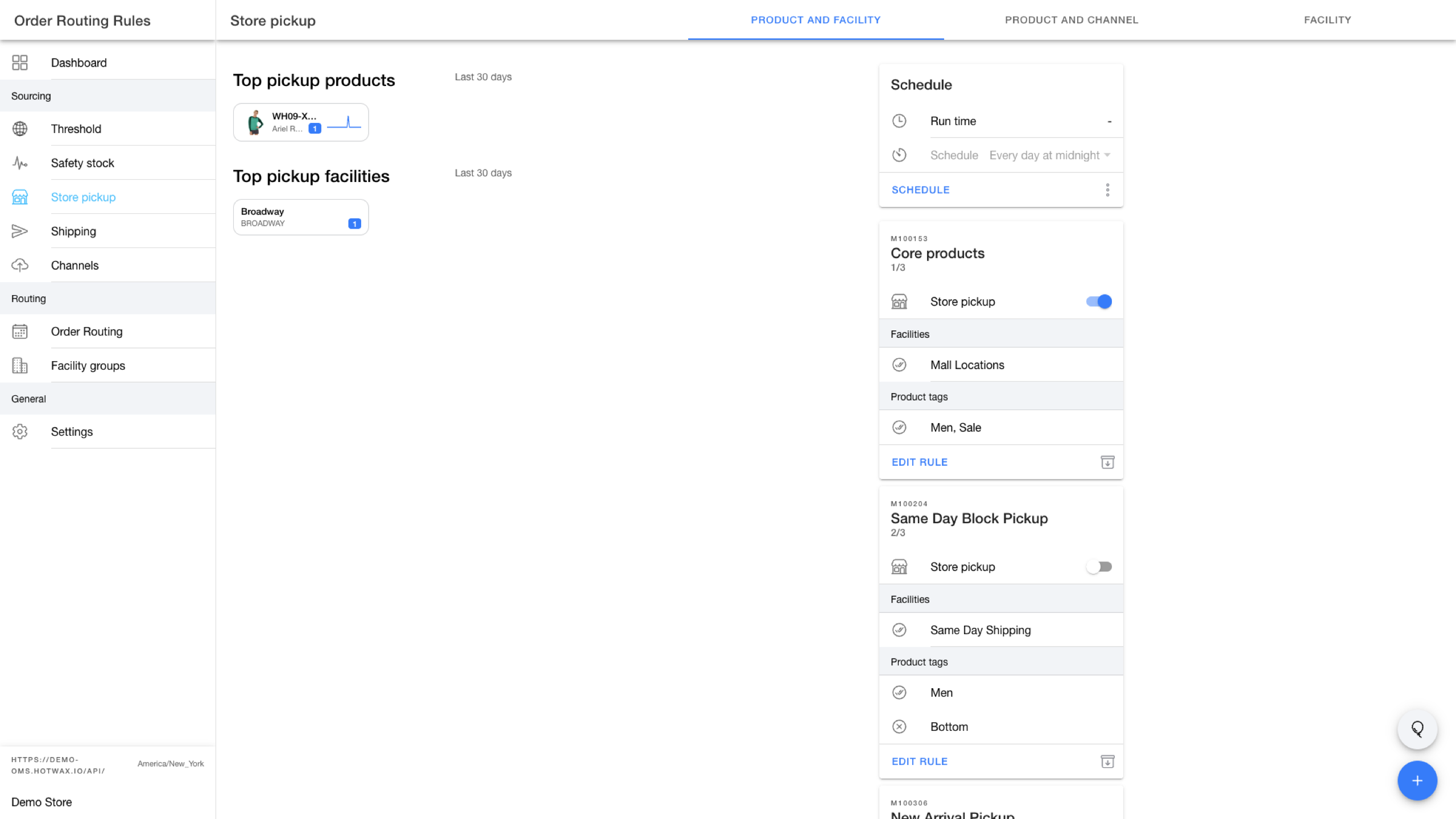
Open `Sourcing` > `Store pickup` to manage pickup eligibility across three tabs:
* `Product and facility`: Apply a product rule to facility groups.
* `Product and channel`: Apply a product rule to inventory channels.
* `Facility`: Add or remove facilities from pickup groups.
The page also displays `Top pickup products` and `Top pickup facilities` for the last 30 days.
Compare recent pickup activity with the scheduled product-and-facility rules.
## Manage pickup facilities
1. Select the `Facility` tab.
2. If no pickup group exists, select `Create pickup group` or `Use an existing group`.
3. Search for a facility by name or ID.
4. Sort the list by `Order volume`, `Alphabetical`, or `Created date`.
5. Find the required facility.
6. Turn on the toggle for each pickup group the facility should join.
7. Turn off a toggle to remove the facility from that pickup group.
Each facility card displays its buy online, pick up in store (BOPIS) order count for the last 30 days.
## Create a product and facility rule
Use this rule when selected products should have different pickup eligibility at a set of facilities.
1. Select the `Product and facility` tab.
2. Select `Create store pickup rule` when the tab has no rules, or select the add button.
3. Enter a unique `Name`.
4. Turn `Store pickup` on to allow pickup or off to block pickup.
5. Turn on `Select all facility groups`, or add at least one group under `Included`.
6. Add groups under `Excluded` to remove them from the included scope.
7. Select the button that shows the number of impacted facilities and confirm the resulting facility count.
8. Define the product scope under `Products by tags` and `Products by feature`.
9. Review the `Preview`. Search the matching products and select a preview facility to compare the current and proposed `Allow Pickup` value.
10. Select the save button.
If no facility groups are available, select `Create facility group` or `Use an existing group` from the rule form.
## Create a product and channel rule
Use this rule when selected products should have different pickup eligibility on one or more inventory channels.
1. Select the `Product and channel` tab.
2. Select `Create store pickup rule` when the tab has no rules, or select the add button.
3. Enter a unique `Name`.
4. Turn `Store pickup` on to allow pickup or off to block pickup.
5. Select one or more channels, or turn on `Select all channels`.
6. Define the product scope with tags or product features.
7. Review the `Preview`.
8. Select the save button.
If no channels are available, select `Create channel` or `Manage channels` from the rule form.
## Review and prioritize rules
Expand a rule card to review its pickup setting, scope, and product filters.
* Change the `Store pickup` toggle on the card for an immediate setting update.
* Select `Edit rule` to change the complete rule.
* Select the archive button to remove the rule from the active sequence.
* Expand `Archived` to restore a rule.
The last matching rule in the sequence sets the pickup value for a product and facility. Use the sequence button to reorder the rules, then select the save button.
For schedule controls, see [Schedule sourcing rules](/documents/retail-operations/inventory/available-to-promise/schedule-atp-rules.md).
---
# Agent Instructions
This documentation is published with GitBook. GitBook is the documentation platform designed so that both humans and AI agents can read, navigate, and reason over technical content effectively. Learn more at gitbook.com.
## Querying This Documentation
If you need additional information that is not directly available in this page, you can query the documentation dynamically by asking a question.
Perform an HTTP GET request on the current page URL with the `ask` query parameter, and the optional `goal` query parameter:
```
GET https://docs.hotwax.co/documents/retail-operations/inventory/available-to-promise/store-pickup-rules.md?ask=&goal=
```
`ask` is the immediate question: it should be specific, self-contained, and written in natural language.
`goal` is optional and describes the broader end goal you are ultimately trying to accomplish on behalf of the user. GitBook uses it to tailor the answer towards what is most useful for that goal.
The response will contain a direct answer to the question and relevant excerpts and sources from the documentation.
Use this mechanism when the answer is not explicitly present in the current page, you need clarification or additional context, or you want to retrieve related documentation sections.