> For the complete documentation index, see [llms.txt](https://docs.hotwax.co/documents/llms.txt). Markdown versions of documentation pages are available by appending `.md` to page URLs; this page is available as [Markdown](https://docs.hotwax.co/documents/retail-operations/inventory/available-to-promise/create-channels.md).
# Create inventory channels
Create inventory channels, assign facilities, link configuration facilities, and schedule inventory publishing.
An inventory channel defines which facilities contribute inventory to a sales channel. It also links a configuration facility for channel-level product rules.
## Create a channel
1. Open `Sourcing` > `Channels`.
2. Select the `Channels` tab on the `Inventory channels` page.
3. Select the add button.
4. Enter a channel `Name`.
5. Review the generated `ID`. The internal ID can contain no more than 20 characters.
6. Enter a `Description`.
7. Review the selected `Product store`.
8. Under `Group level configurations`, select `Create new` or choose an existing configuration facility.
9. Select the confirmation button.
Creating a channel also creates or links its configuration facility and associates both records with the selected product store.
{% hint style="info" %}
If the page has no inventory channels, you can select `Use an existing channel` to link a channel facility group that already exists.
{% endhint %}
## Link a configuration facility
Each channel card shows its configuration facility. If the card displays `No configuration facility linked`, select `Add`, choose a configuration facility, then save.
To replace a linked configuration facility, select the options button beside the current facility, choose another facility, then save.
Channel-level threshold, store pickup, and shipping rules use this configuration facility.
## Assign facilities
1. Find the channel card.
2. Select the options button in the `Facilities` section.
3. Search for a facility when needed.
4. Select the facilities that should contribute inventory to the channel.
5. Clear a selected facility to remove it from the channel.
6. Select the save button.
The channel card displays separate counts for retail facilities and warehouses.
## Edit channel details
Select `Edit group` on a channel card to update its name or description.
## Configure inventory publishing
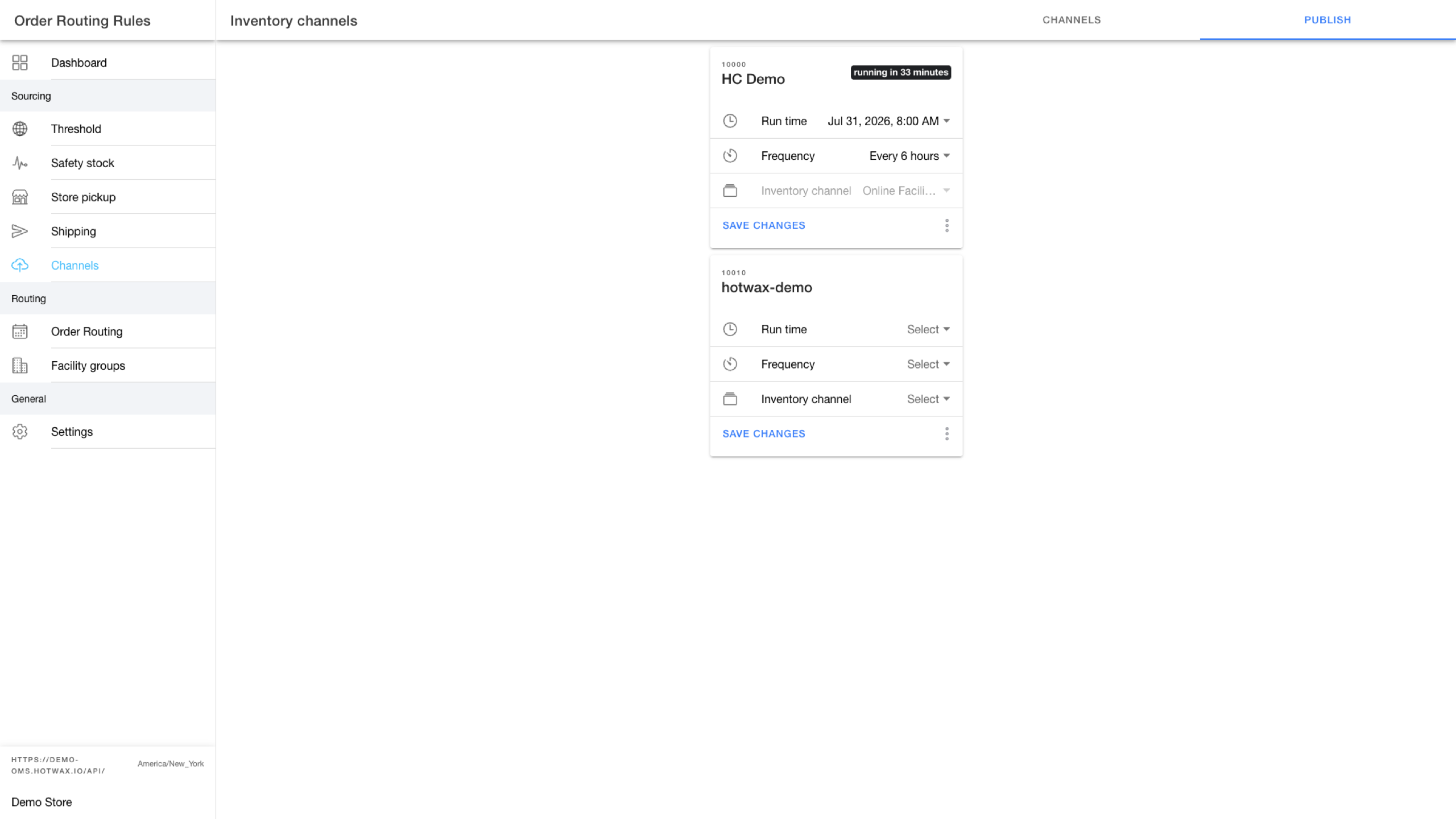
The `Publish` tab displays one card for each Shopify shop connected to the selected product store.
1. Select the `Publish` tab.
2. Find the Shopify shop.
3. Select a `Run time`.
4. Select a `Frequency`.
5. Select the `Inventory channel` that should supply inventory.
6. Select `Save changes`.
Set the publishing schedule and inventory channel for each connected Shopify shop.
Open the shop card overflow menu for these actions:
* `History`: Review previous job runs.
* `Copy details`: Copy the job information.
* `Run now`: Create a copy of the job and run it immediately.
* `Disable`: Stop future occurrences of the job.
{% hint style="info" %}
The `Publish` tab displays `No publish jobs yet` until a Shopify shop is connected to the selected product store.
{% endhint %}
For a connection using the Company inventory-event publishing model, continue with [Monitor Shopify inventory sync](https://github.com/hotwax/oms-documentation/tree/user-guides-pub/documents/system-admin/administration/company/manage-shopify-inventory-sync.md). Confirm the deployed publishing model before you activate either path.
---
# Agent Instructions
This documentation is published with GitBook. GitBook is the documentation platform designed so that both humans and AI agents can read, navigate, and reason over technical content effectively. Learn more at gitbook.com.
## Querying This Documentation
If you need additional information that is not directly available in this page, you can query the documentation dynamically by asking a question.
Perform an HTTP GET request on the current page URL with the `ask` query parameter, and the optional `goal` query parameter:
```
GET https://docs.hotwax.co/documents/retail-operations/inventory/available-to-promise/create-channels.md?ask=&goal=
```
`ask` is the immediate question: it should be specific, self-contained, and written in natural language.
`goal` is optional and describes the broader end goal you are ultimately trying to accomplish on behalf of the user. GitBook uses it to tailor the answer towards what is most useful for that goal.
The response will contain a direct answer to the question and relevant excerpts and sources from the documentation.
Use this mechanism when the answer is not explicitly present in the current page, you need clarification or additional context, or you want to retrieve related documentation sections.