Product Sync from Shopify
Learn how HotWax Commerce downloads product data from Shopify using bulk operations and change detection.
HotWax Commerce treats Shopify as the primary source of truth for all product information. To keep large product catalogs synchronized without hitting API limits, HotWax uses the Shopify GraphQL Admin API and bulk operations.
The synchronization process runs in seven stages:
Queue the request: The scheduled
Sync Shopify Product Updatesjob plans the sync. It identifies exactly what data is needed from Shopify based on the last successful sync time and adds a small time buffer to make sure no updates are missed.Send to Shopify: HotWax sends the bulk query to Shopify's GraphQL Admin API and records the bulk operation that Shopify creates in response.
Confirm completion: Shopify processes the bulk query in the background. HotWax confirms when the operation finishes in two ways: it polls Shopify on a schedule, and it listens for a real-time
Bulk Operations Finishwebhook from Shopify. Once completion is confirmed, HotWax downloads the result file, a JSONL file containing every product and variant.Prepare data: HotWax reads the downloaded file, transforms it into a nested JSON format, and queues it for the database sync.
Identify changes: Instead of overwriting the database, HotWax identifies exactly what has changed using a baseline comparison strategy. It groups related product data (such as core details, tags, features, identifiers, and variant associations) and computes a unique SHA-256 hash for each group. If a new hash matches the one stored in the
ProductUpdateHistorytable, that group has not changed and is skipped.Update the database: Only the identified changes (deltas) are applied. This selective update handles core product details, features, tags, pricing, and identifiers like SKU and UPC. It also detects the correct product type (such as
FINISHED_GOODvs.DIGITAL_GOOD) based on Shopify flags.Save history: Finally, HotWax updates the
ProductUpdateHistoryrecord with the new hashes and a snapshot of the current data. This makes the sync process idempotent, meaning that running the sync again with the same data results in zero database changes.
Developer details: services, system messages, and statuses
The flow runs on a single system message of type BulkQueryShopifyProductUpdates, which moves through the following services and statuses:
Queue the request
sync#ShopifyProductUpdates (job sync_ShopifyProductUpdates)
SmsgProduced
Send to Shopify
send#ShopifyBulkQueryMessage (saves the bulk operation ID to remoteMessageId)
SmsgSent
Confirm completion
poll_ShopifyBulkOperationResult job, or the Bulk Operations Finish webhook; the result downloads to ${receiveMovePath}/${systemMessageId}.jsonl
SmsgReceived
Prepare data
consume#ShopifyProductDataFile uploads to the master data management (MDM) queue SYNC_SHOPIFY_PRODUCT
SmsgConsumed
Identify changes, update, and save history
sync#ShopifyProduct computes the SHA-256 hashes, writes the deltas, and updates ProductUpdateHistory
—
Product data mapping
Parent product
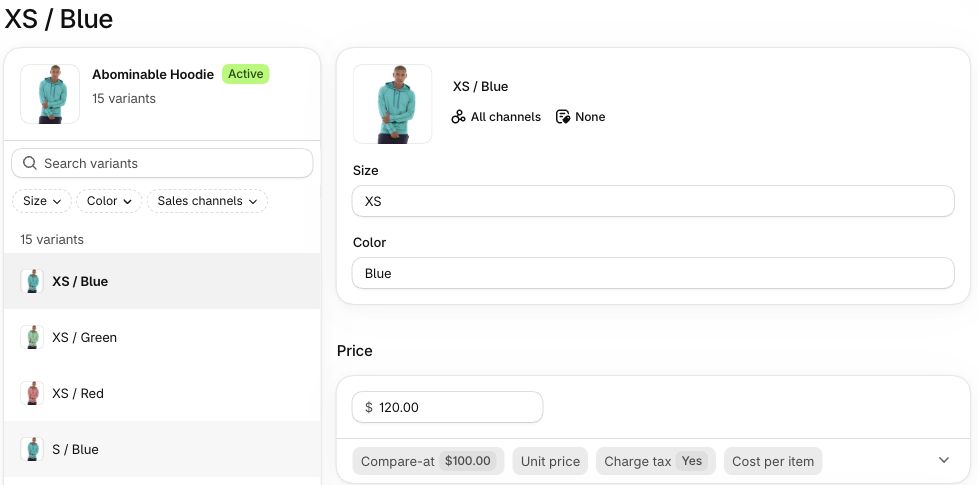
A virtual product, also known as a parent product, does not have a set size or color. All fields in the product JSON are imported, but only relevant fields are processed to improve system performance. Here is how parent product fields are mapped between Shopify and HotWax:
1
ID
Shopify Product ID
2
Title
Product Name
3
Body HTML
Product Content
4
Vendor
Brand
5
Product_type
Categories
6
Tags
Tags
7
Variant
Variant
8
Media
Overview


Variant product
The parent product comes in various sizes and colors, resulting in multiple variants. Here is how product variant fields are mapped:
1
Product Variant ID
Shopify Product ID
2
Title
Product Name
3
Options
Feature
4
Image
Image
5
Parent Product
Parent Product
6
Price
Price
7
SKU
SKU
8
Quantity
View inventory
9
Shipping
Shippable
10
Product Type
Product Type
11
Weight
Weight
12
Metafields
Product Tag


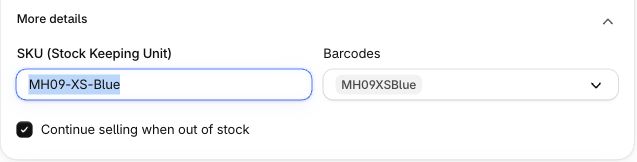
Shopify has multiple product identifiers, such as Shopify Product ID, Product SKU, Product Name, and UPC. Before importing products, set up the primary product identifier that maps to the product ID in HotWax. The primary product identifier can be configured in HotWax when setting up a new product store.
Manage sales orders for products not in HotWax
When orders are placed on Shopify, they transfer to HotWax. However, sometimes an order might include a newly launched product in Shopify that has not yet synced with HotWax. This can cause the order download to fail if the product import job has not yet run. To prevent this, HotWax creates a temporary placeholder product for the new item. Once the product import job runs, the system adds the necessary information, such as the product name, brand, price, and weight, to the placeholder product. This makes sure that the order download succeeds.
Last updated
Was this helpful?