> For the complete documentation index, see [llms.txt](https://docs.hotwax.co/documents/llms.txt). Markdown versions of documentation pages are available by appending `.md` to page URLs; this page is available as [Markdown](https://docs.hotwax.co/documents/learn-shopify/shopify-reference/preorders-and-backorders/presell-catalog-management.md).

# Presell Catalog Management

Learn how HotWax Commerce manages pre-order and backorder catalogs.

#### How are Pre-order and Backorder Catalogs Managed in HotWax Commerce

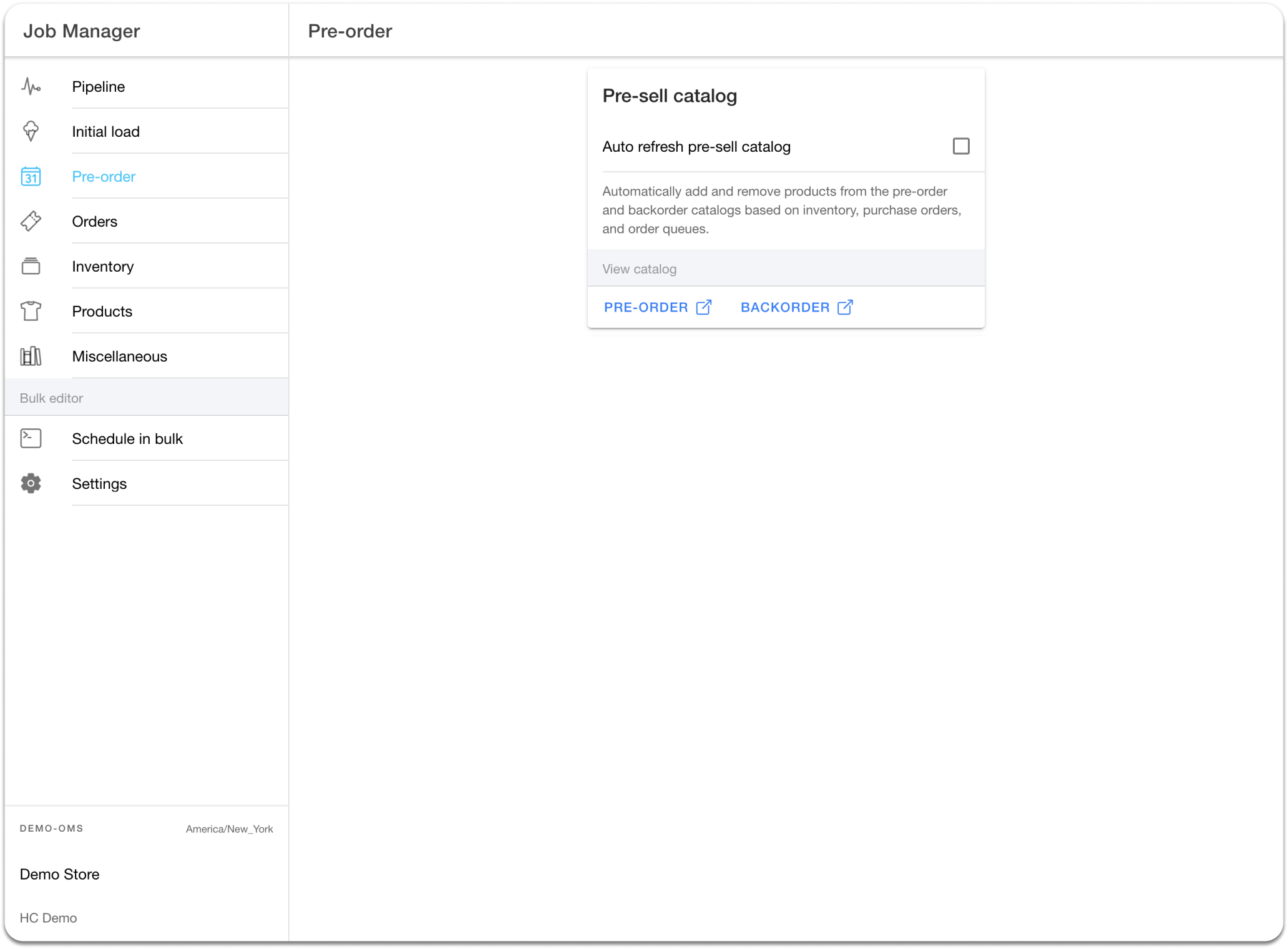
In HotWax Commerce, merchandisers have the option to schedule the 'Auto Refresh Pre-sell Catalog' job, which will automatically add or remove pre-sell products from the HotWax Pre-order/Backorder category. Any items that are part of the Pre-order/Backorder category will be listed on Shopify as pre-order or backorder items.

The job titled 'Auto refresh Pre-sell catalog' adds pre-sell items to the HotWax Commerce Pre-order/Backorder category, using the following criteria.

* The status of Purchase Order items is created or approved.
* The Purchase Order is scheduled for a future date.
* The current inventory of the product is 0.

\
Once these conditions are fulfilled, products become eligible for pre-sell on HotWax Commerce. In addition, HotWax Commerce examines the "isNewStyle" attribute of the products included in the purchase orders. If the "isNewStyle" attribute is set to "Yes," the product is included in the pre-order category. Conversely, if the merchant has indicated "No" for the "isNewStyle" attribute, the product is placed in the backorder category.

In the following example, let’s assume a merchant has 4 purchase orders aligned:

<table data-full-width="false"><thead><tr><th width="106">Purchase Orders</th><th width="98">Product Name</th><th width="110">Arrival Date</th><th width="94">PO Status</th><th width="82">IsNewStyle</th><th width="107">Current Inventory</th><th>Presell Category</th></tr></thead><tbody><tr><td>PO 1234</td><td>Black Jacket</td><td>10-10-23</td><td>Created</td><td>Y</td><td>0</td><td>Pre-order</td></tr><tr><td>PO 1234</td><td>Green Jacket</td><td>10-10-23</td><td>Created</td><td>N</td><td>0</td><td>Backorder</td></tr><tr><td>PO 1234</td><td>Yellow Jacket</td><td>10-10-23</td><td>Created</td><td>N</td><td>20</td><td>NA</td></tr><tr><td>PO 2345</td><td>Red Shirt</td><td>08-08-23</td><td>Approved</td><td>Y</td><td>0</td><td>Pre-order</td></tr><tr><td>PO 2345</td><td>Green Shirt</td><td>08-08-23</td><td>Approved</td><td>Y</td><td>0</td><td>Pre-order</td></tr><tr><td>PO 2345</td><td>Purple Shirt</td><td>08-08-23</td><td>Approved</td><td>N</td><td>0</td><td>Backorder</td></tr><tr><td>PO 1AB2</td><td>Yellow Shirt</td><td>07-31-23</td><td>Created</td><td>Y</td><td>0</td><td>Pre-order</td></tr><tr><td>PO 12AB</td><td>Red Skirt</td><td>07-31-23</td><td>Canceled</td><td>Y</td><td>0</td><td>NA</td></tr></tbody></table>

Purchase orders are carefully analyzed to determine which products are available for preselling. In the example provided, the Yellow jacket and Red skirt do not meet the pre-sell criteria and therefore cannot be added in the pre-sell catalog. However, all other products are categorized for pre-selling based on whether they are a new style or not.

The job called "Auto Refresh Pre-Sell Catalog" also eliminates pre-sell items from the pre-order/backorder category in HotWax Commerce, using the following criteria:

* When pre-orders on the entire future inventory are received and no additional pre-orders can be taken.
* When the Purchase Order status is changed to “Canceled” or ’”Completed” by the merchandiser.
* When inventory is physically received at the fulfillment center.
* When the Purchase Order arrival date that is the promised fulfillment date has been passed.

<figure><img src="https://1292394199-files.gitbook.io/~/files/v0/b/gitbook-x-prod.appspot.com/o/spaces%2Fq42f0puI9OYah51t08oQ%2Fuploads%2Fgit-blob-0f828e50bc701042149f010336efd21002d30c07%2F31.png?alt=media" alt=""><figcaption><p><em>Fig. 1 : Configurations of 'Auto refresh pre-sell catalog' job in Job Managers App</em></p></figcaption></figure>


---

# Agent Instructions
This documentation is published with GitBook. GitBook is the documentation platform designed so that both humans and AI agents can read, navigate, and reason over technical content effectively. Learn more at gitbook.com.

## Querying This Documentation
If you need additional information that is not directly available in this page, you can query the documentation by asking a question.

Perform an HTTP GET request on the following URL with the `ask` and `goal` query parameters:

```
GET https://docs.hotwax.co/documents/learn-shopify/shopify-reference/preorders-and-backorders/presell-catalog-management.md?ask=<question>&goal=<user_goal>
```

`ask` is the immediate question: it should be specific, self-contained, and written in natural language.
`goal` is what the user is ultimately trying to achieve, the reason they need the answer. Sharing it helps GitBook give you a better, more relevant answer. A goal is most helpful when it describes the outcome the user wants rather than restating the question. For example, with `ask=how do I create an API token`, a goal like `automate deployments from our CI pipeline` lets GitBook tailor the answer to that use case.

The response will contain a direct answer to the question and relevant excerpts and sources from the documentation.

Use this mechanism when the answer is not explicitly present in the current page, you need clarification or additional context, or you want to retrieve related documentation sections.
