> For the complete documentation index, see [llms.txt](https://docs.hotwax.co/documents/llms.txt). Markdown versions of documentation pages are available by appending `.md` to page URLs; this page is available as [Markdown](https://docs.hotwax.co/documents/learn-netsuite/troubleshooting/missing-customer-deposit.md).
# Missing Customer Deposit
Use this guide when an order exists in NetSuite but its customer deposit is missing. First confirm that the order was created in NetSuite, then trace the payment and customer deposit jobs.
## How customer deposits are created
1. OMS creates the order in NetSuite and receives the NetSuite internal ID.
2. OMS records the payment as an Order Payment Preference (OPP).
3. The Moqui `generate_CustomerDepositFeed` job exports the eligible payment.
4. The configured NetSuite customer deposit job processes the feed and creates the customer deposit.
## 1. Confirm that the order exists in NetSuite
Open the order in Order Manager and check the **Order Identification** section for the NetSuite internal ID.
* If the NetSuite internal ID is present, continue to the payment checks.
* If the NetSuite internal ID is missing, the whole order has not been created in NetSuite. Follow [Orders not syncing with NetSuite](/documents/learn-netsuite/troubleshooting/order-do-not-sync.md) before troubleshooting the customer deposit.
> A partial payment blocks creation of the order in NetSuite; it is not only a customer deposit issue. Resolve the payment and sync the order first.
## 2. Verify the payment in OMS
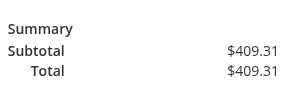
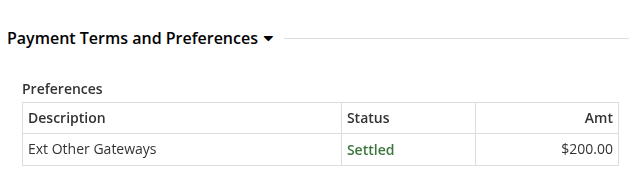
On the Order Details page, compare the **Order Total** with the total in **Payment Terms and Preferences**.
### No payment is recorded
If no Order Payment Preference is present, OMS has no payment to export.
Check the order timeline in Shopify for a payment event:
1. In Shopify Admin, open **Orders** and select the order.
2. Review payment events in the order timeline.
3. If Shopify contains the payment but OMS does not, run the configured order update import or ask the support team to reprocess the payment data.
4. Confirm that an Order Payment Preference is created in OMS.
### The order is partially paid
The payment total must equal the order total before the order can be created in NetSuite.
Capture or correct the remaining payment and confirm that OMS reflects the full amount. Then create the order in NetSuite before continuing with the deposit.
## 3. Run both customer deposit job layers
In the Job Manager app, open **NetSuite** and run or verify both stages:
1. Run the Moqui `generate_CustomerDepositFeed` job to generate the customer deposit feed.
2. Run the configured NetSuite job that consumes the feed: `HC_MR_CreateCustomerDeposit` or `HC_SC_CreateCustomerDepositAndRefund`.
3. Check the last run status for errors before retrying.
The Moqui feed job and the NetSuite processing job are separate. Running only one of them does not complete the customer deposit flow.
## 4. Verify the customer deposit in NetSuite
1. Search for the order in NetSuite and open the Sales Order.
2. Open the **Related Records** tab.
3. Confirm that a Customer Deposit is listed.
If the deposit remains missing, check the customer deposit job error and response files for the affected order before retrying the jobs.
---
# Agent Instructions
This documentation is published with GitBook. GitBook is the documentation platform designed so that both humans and AI agents can read, navigate, and reason over technical content effectively. Learn more at gitbook.com.
## Querying This Documentation
If you need additional information that is not directly available in this page, you can query the documentation by asking a question.
Perform an HTTP GET request on the following URL with the `ask` and `goal` query parameters:
```
GET https://docs.hotwax.co/documents/learn-netsuite/troubleshooting/missing-customer-deposit.md?ask=&goal=
```
`ask` is the immediate question: it should be specific, self-contained, and written in natural language.
`goal` is what the user is ultimately trying to achieve, the reason they need the answer. Sharing it helps GitBook give you a better, more relevant answer. A goal is most helpful when it describes the outcome the user wants rather than restating the question. For example, with `ask=how do I create an API token`, a goal like `automate deployments from our CI pipeline` lets GitBook tailor the answer to that use case.
The response will contain a direct answer to the question and relevant excerpts and sources from the documentation.
Use this mechanism when the answer is not explicitly present in the current page, you need clarification or additional context, or you want to retrieve related documentation sections.